
In short: Chrome can delete cookies when it closes, but it has no setting that deletes your browsing history automatically. You can clear it by hand, use incognito windows, or let an extension clear it for you on a schedule, when Chrome closes or when you step away.
Does Chrome delete history by itself?
Not in the way most people expect. Chrome keeps your browsing history on your computer for about 90 days and then removes older entries. Until then, every page you open stays in the list, in the address bar suggestions and on the history page.
There is no switch in Chrome's settings that says "delete my history every day" or "delete my history when I close Chrome". The one automatic option Chrome does have, deleting site data when all windows close, removes cookies and site data but leaves your history untouched.
Option 1: Clear history by hand
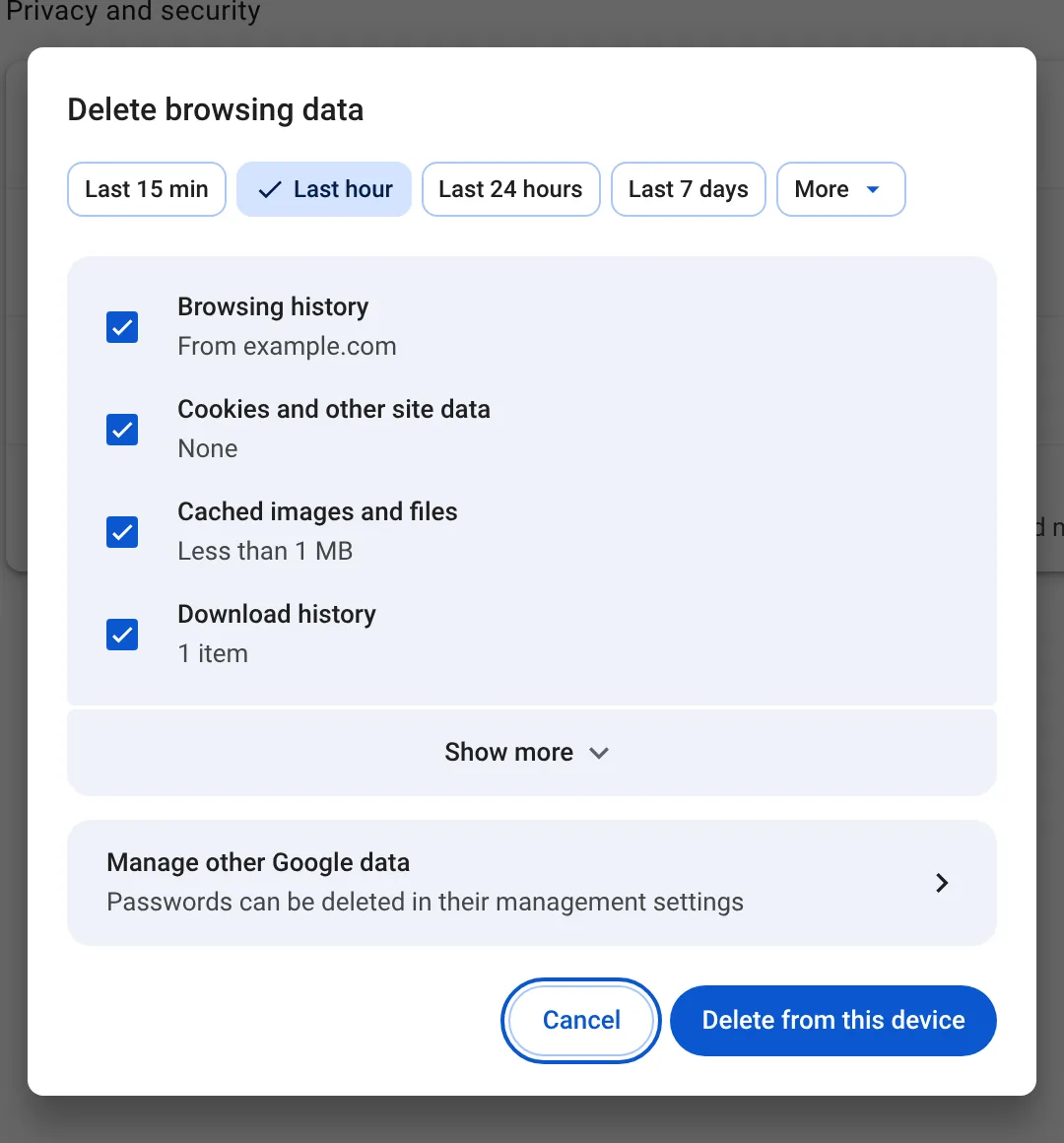
- Press Ctrl + Shift + Delete (Cmd + Shift + Delete on a Mac).
- Choose a time range, for example Last 24 hours or All time.
- Tick Browsing history and anything else you want gone, then confirm.
This works, but only when you remember to do it. Most people do it once, forget for a few weeks, and the list fills up again.
Option 2: Use incognito windows
An incognito window does not save history at all. It is a good fit for one-off searches, but it is not a replacement for normal browsing: you are signed out of everything, your extensions are usually off, and it is easy to open a normal window by mistake. Read what incognito really hides before relying on it.
Option 3: Google Account auto-delete
If you sync Chrome with your Google Account, your activity can also be saved in that account. At myactivity.google.com you can set Web & App Activity to delete itself automatically after 3, 18 or 36 months. That cleans the copy in your Google Account. It does not touch the history stored in Chrome on your computer.
Option 4: Clear history automatically with an extension
Auto History Wipe adds what Chrome is missing. After a one-minute setup it clears your history, and any other data you choose, on its own:
- When Chrome closes. If Chrome shuts down too fast, the cleaning finishes the next time it starts.
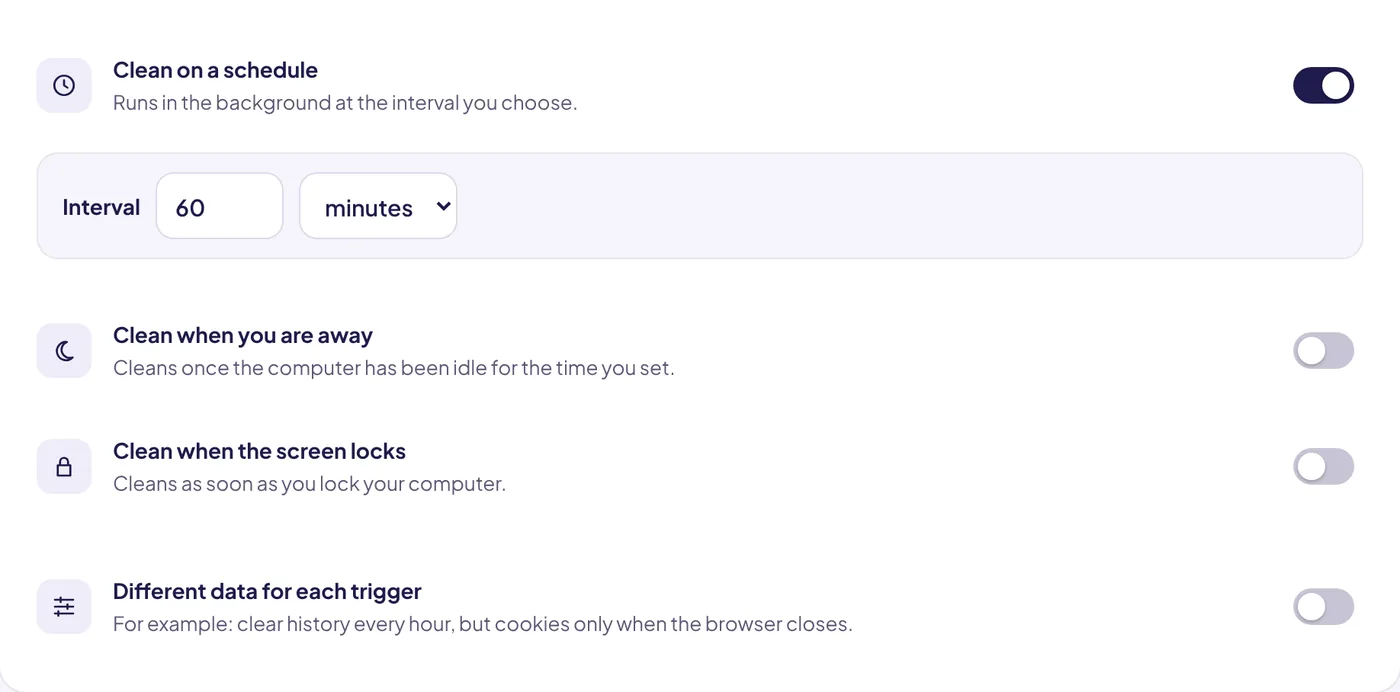
- On a timer, every few minutes, hours or days.
- When you step away or lock the screen.
- With one click or a keyboard shortcut.
Two settings make it fit how you browse. Keep recent history deletes only history older than the number of days you choose, so this week stays and everything older goes. Always-forget sites deletes visits to the sites you list the moment they happen.
Set it up in a minute
- Add Auto History Wipe to Chrome. A short setup page opens.
- Choose a profile: Light cleans history and cache, Standard adds cookies, downloads and form data.
- Choose when to clean, for example When Chrome closes.
- Add the sites you want to stay signed in to, such as your mail, to the protected sites.
The full walkthrough is in the setup guide.
Which option fits you?
The four options solve slightly different problems, so it helps to start from what you are worried about.
- Someone else uses your computer. Local history is the problem. Clearing it by hand works if you remember; an automatic rule works when you forget.
- You do not want Google to keep a long record. That is your account copy, not the history page. Set auto-delete on Web & App Activity and leave it running.
- You want a single private session. Incognito is built for that. Close every incognito window and that session is gone.
- You want all of the above without thinking about it. Combine account auto-delete with automatic cleaning in the browser.
What deleting history removes, and what it leaves
Google lists exactly what goes when you delete browsing history: the addresses disappear from the History page, their shortcuts vanish from the New Tab page and the address bar stops predicting those sites. If you are signed in with history sync on, the same pages are removed from your other signed-in devices too.
Two things are not part of it. Cookies and cached files are separate checkboxes, so you can stay signed in while the list of pages is wiped. And your Google Account activity at myactivity.google.com is a separate copy with its own controls. What clearing history really removes goes through every place a visit can leave a trace.
The bottom line
Chrome on its own only drops history after about 90 days, so if you want it gone sooner you need a rule: account auto-delete for the copy Google keeps, and a cleaning schedule for the copy on your computer. Set both once and you never have to remember again.
Questions and answers
Can Chrome delete history automatically without an extension?
No. Chrome can delete cookies and site data when it closes, and it removes history older than about 90 days, but it has no setting that clears your history on a schedule or on close.
Does clearing history sign me out of websites?
No. History is only the list of pages you visited. You are signed out only when cookies are deleted.
Will Google Account auto-delete clear my Chrome history?
It clears the copy saved in your Google Account. The history stored in Chrome on your computer stays until you delete it there.
Sources
The official help pages behind this guide. Chrome moves menus around between versions; if yours looks different, these pages show the current steps.