
In short: You stay signed in to a site because of its cookies, so deleting all cookies signs you out everywhere. The fix is to keep cookies for a short list of trusted sites and clean the rest, either with Chrome exceptions or with protected sites in Auto History Wipe.
Why clearing cookies signs you out
When you sign in, the website stores a small cookie in your browser that says "this person is signed in". Delete it and the site forgets you. That is why a full cookie clean means typing passwords and two-factor codes all over again.
Option 1: Exceptions in Chrome
If you use Chrome's setting that deletes site data when all windows close, you can add exceptions. Open Chrome's settings, search for site data, and under the list of sites that are allowed to save data, add the sites you want to keep, for example [*.]google.com.
This only works with the close-time setting, and it only covers cookies and site data. Your history and cache stay untouched.
Option 2: Protected sites in Auto History Wipe
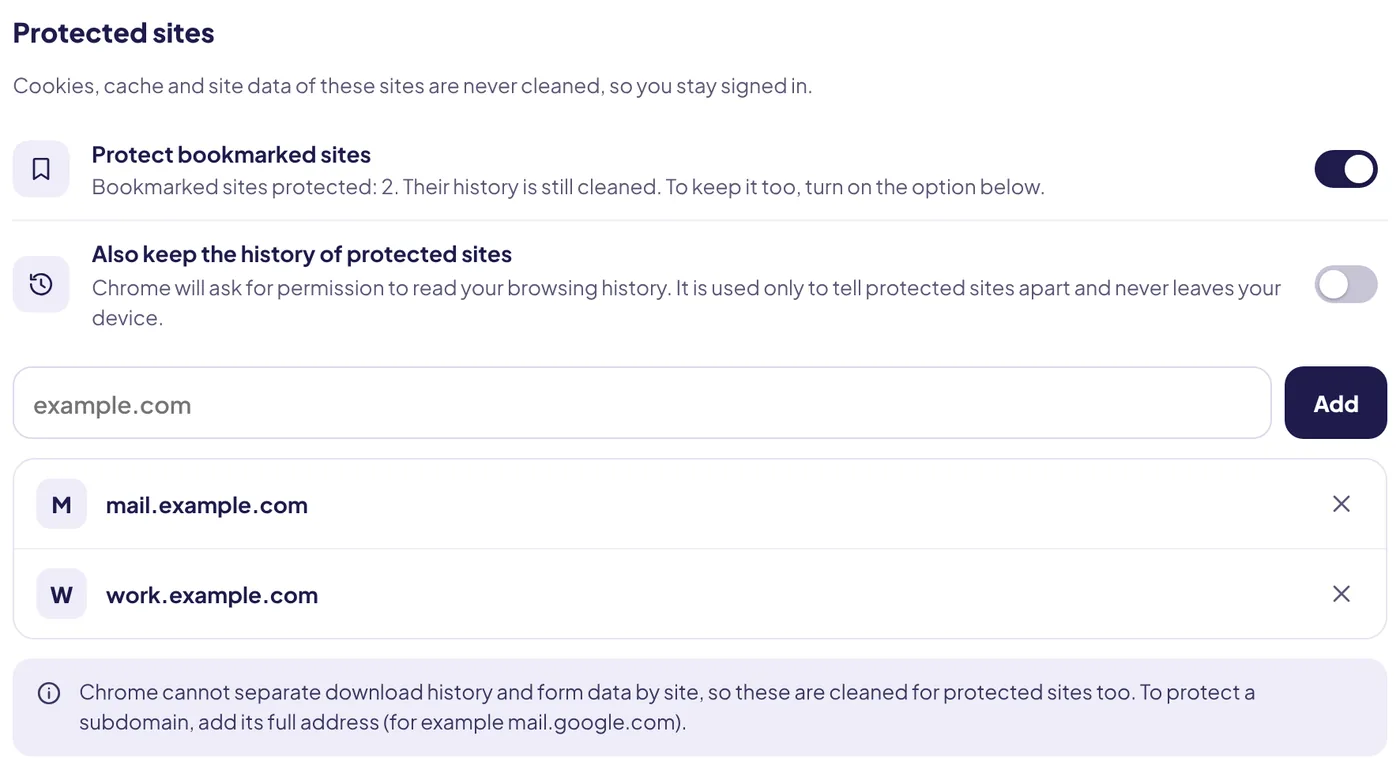
Auto History Wipe keeps cookies, cache and site data for every site on its protected list, no matter when or how it cleans: on close, on a timer, when you step away or with one click.
- Protect a site in one click. Open the site, click the extension icon and switch on Protect this site.
- Protect your bookmarks. Switch on Protect bookmarked sites and every site in your bookmarks stays signed in. New bookmarks are included automatically.
- Keep their history too, if you like, with one more switch.
Everything else is cleaned as usual, so trackers and sites you visited once are gone.
Which sites to protect
A good list is short: your mail, your work tools, your bank and maybe one or two social sites. Every site you add keeps its cookies, including any tracking cookies it sets, so protect only what you really use every day.
One exception: your Google Account
If you are signed in to Chrome itself with a Google Account, Chrome signs you back in to Google sites such as Gmail and YouTube right after a cleaning. This is a Chrome feature and no extension can change it. To be signed out of Google everywhere, sign out of Chrome from the profile menu.
Set exceptions on Android
Chrome on Android has no exception list for the main Delete browsing data window, but you can clear one site at a time instead of everything. Google's steps: open the site, tap the icon on the left of the address bar, then Cookies and site data, and delete what is stored for that site. Everything else stays signed in.
Check that it worked
- Clear cookies with your exceptions or protected sites in place.
- Open one protected site. You should still be signed in.
- Open a site you did not protect. You should be signed out or see its cookie banner again.
- If a protected site signed you out, check that you protected the address you actually sign in on, for example accounts.example.com as well as example.com.
Some services sign in through a separate domain. Google is the best known: your sign-in lives on accounts.google.com. Microsoft, Apple and many banks do the same. Protecting the main domain usually covers its subdomains, but a sign-in hosted on a completely different domain needs its own entry.
When signing out is the right call
Exceptions are for your own computer. On a shared or public computer you want the opposite: everything gone, including sign-ins. The public computer checklist covers that case.
The bottom line
You do not have to choose between a clean browser and staying signed in. Keep the handful of sites you use every day on an exception list and clear cookies from everything else as often as you like.
Questions and answers
Which sites should I protect?
Only the ones you use every day and do not want to sign in to again: usually mail, work tools and your bank.
Are tracking cookies from protected sites kept too?
Yes. A protected site keeps all of its own cookies, so keep the list short.
Why does Gmail stay signed in even when it is not protected?
If you are signed in to Chrome with a Google Account, Chrome restores your Google sign-in after a cleaning. Sign out of Chrome to change that.
Sources
The official help pages behind this guide. Chrome moves menus around between versions; if yours looks different, these pages show the current steps.