
In short: Open the history page, search for the site, select the results and delete them. Then remove the leftover address-bar suggestion, and if you want the site never to appear again, add it to always-forget sites in Auto History Wipe.
Delete one page
- Press Ctrl + H (Cmd + Y on a Mac) to open your history.
- Find the page, click the three-dot menu next to it and choose Remove from history.
Delete every visit to one website
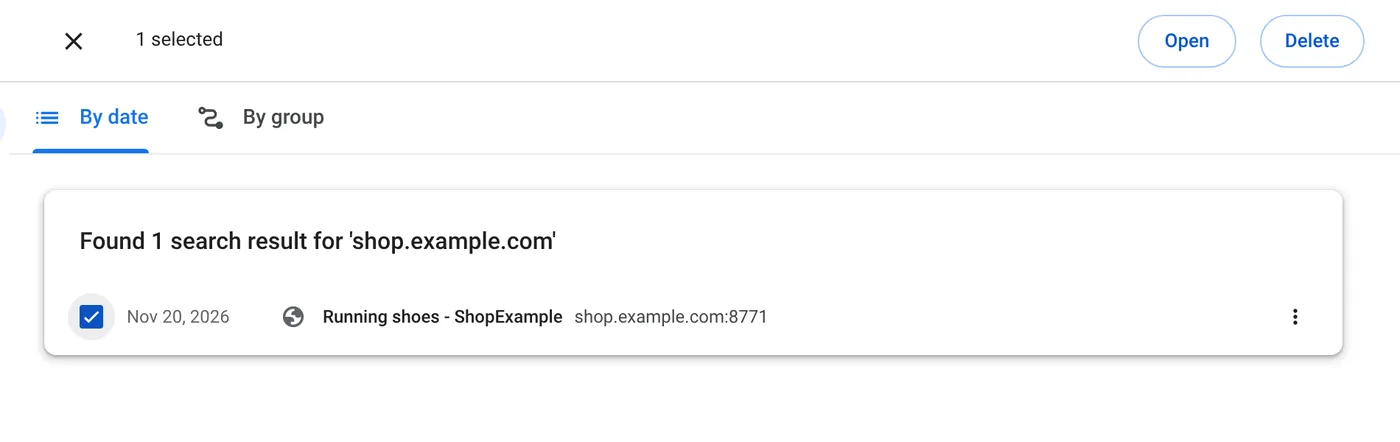
- Open your history and type the site's address, for example
example.com, into the search box. - Tick the checkbox next to the first result.
- Scroll to the last result, hold Shift and tick it. Everything in between is selected.
- Click Delete at the top and confirm. Repeat if the site has more results than fit on one page.
Remove the address-bar suggestion
Chrome may still suggest the site when you start typing. Type the first letters, use the arrow keys to highlight the suggestion, then press Shift + Delete (Shift + Fn + Delete on a Mac). Some suggestions also show a small remove button when you hover over them.
Clear the site's cookies and data
Deleting history does not sign you out or remove what the site stored. To clean one site completely, open it, click the Auto History Wipe icon and choose Clean only this site. Its cookies, cache and site data are removed and nothing else is touched.
Make Chrome forget a site automatically
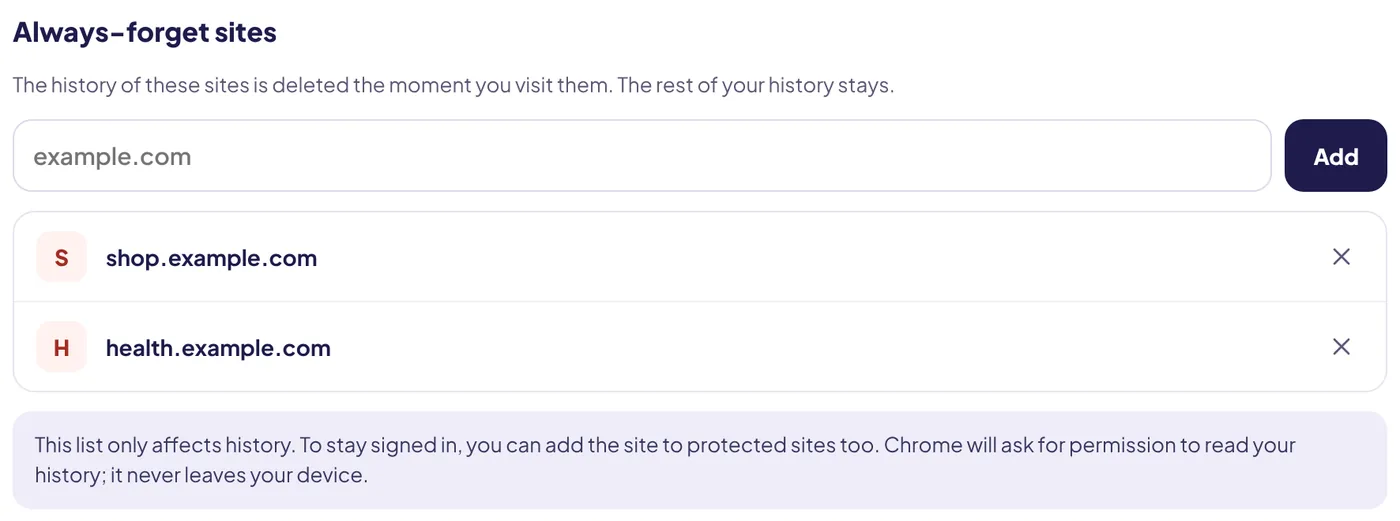
Deleting by hand only cleans the past. With Auto History Wipe you can add the site to Always-forget sites in the settings. From then on, every visit to it is deleted from your history the moment it happens, and its old entries are removed when you add it. The rest of your history stays where it is.
You can combine this with protected sites: for example, stay signed in to your bank while its pages never appear in your history.
On Android and iPhone
Chrome on phones has no search-and-select-all, but single pages are easy to remove. Open ⋮ → History on Android and tap the × next to an entry, or tap Edit on iPhone and select the pages to delete. If history sync is on, Google notes that deleting a page on one device removes it from your other signed-in devices too, so you can do the bulk of the work on a computer.
Places the site can still show up
- New Tab shortcuts. Deleting history removes them, according to Google, but a shortcut you added by hand stays until you remove it.
- Bookmarks. A bookmarked address keeps appearing in the address bar after the history is gone. Delete or rename the bookmark.
- Your Google Account. If Web & App Activity includes Chrome history, the visits are also at myactivity.google.com. Search for the site there and delete it.
- Downloads. Files you downloaded from the site are listed separately. Clear the download list if needed.
Check the address bar afterwards: start typing the site name in a new tab. If it still suggests the address, one of the places above is the source.
The bottom line
Search the history page for the site, select every result and delete them, then clear the site's cookies if you want it to forget you as well. If you never want it in your history again, add it to a forget list so future visits disappear on their own.
Questions and answers
Does deleting a site from history delete its cookies?
No. History and cookies are separate. Use Clean only this site in Auto History Wipe, or Chrome's site settings, to remove the cookies.
Why does Chrome still suggest the site in the address bar?
The suggestion can come from bookmarks, open tabs or search predictions. Highlight it and press Shift + Delete to remove it.
Can I forget a site but stay signed in to it?
Yes. Add it to always-forget sites and to protected sites. Its history is deleted, its cookies are kept.
Sources
The official help pages behind this guide. Chrome moves menus around between versions; if yours looks different, these pages show the current steps.