
In short: Chrome's built-in close setting removes cookies and site data, not your browsing history. To clear history every time Chrome closes, you need an extension such as Auto History Wipe, and a quick check that Chrome really closes.
What Chrome's own setting does
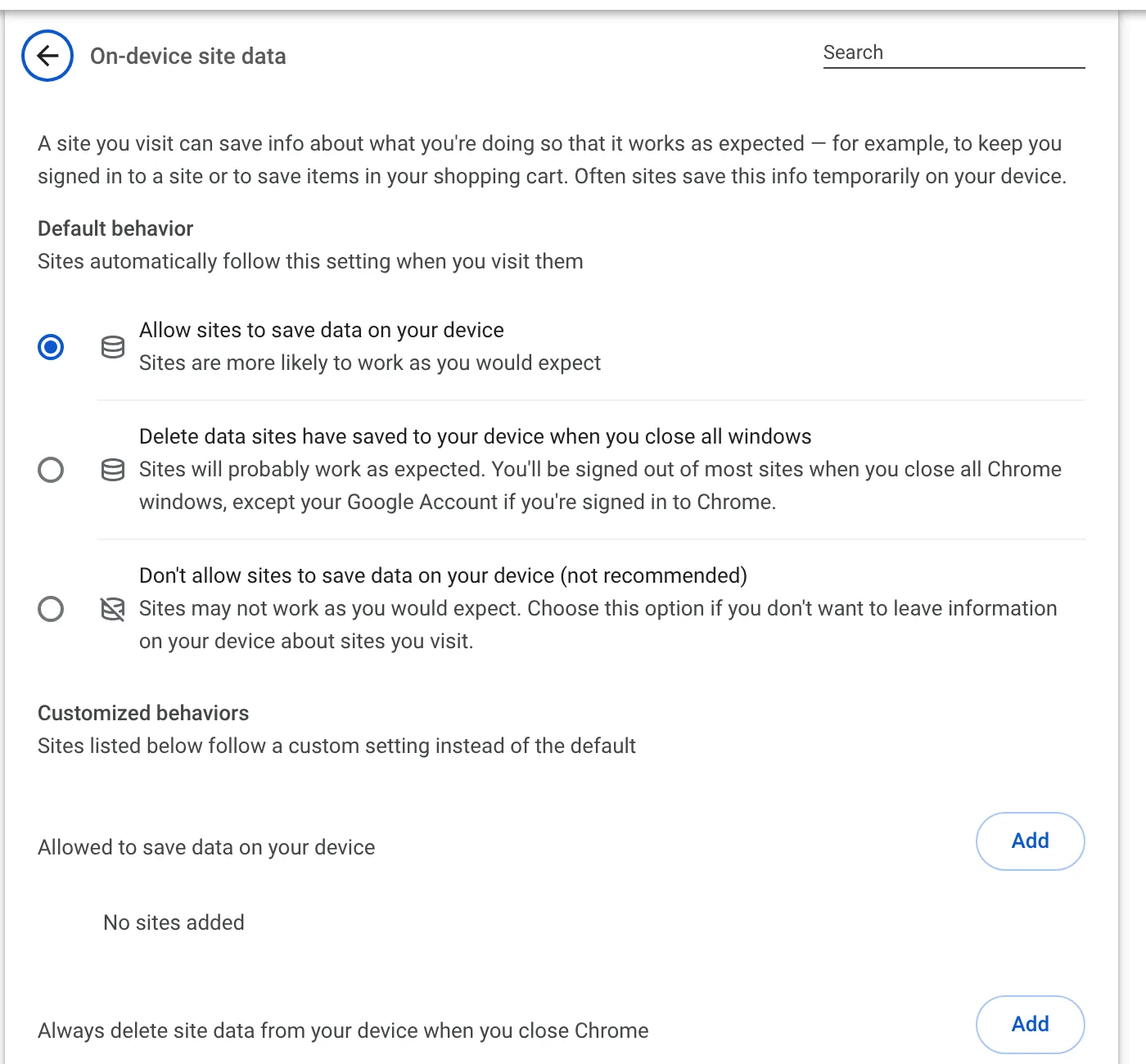
Chrome has an option to delete the data sites saved on your device when you close all windows. To find it, open Chrome's settings and search for site data. When it is on, Chrome removes cookies and site storage at closing time, which signs you out of most sites.
What it does not do is clear your browsing history, your cache or your download list. Those stay exactly as they were. Many people switch this setting on and are surprised to find yesterday's pages still in their history.
Clear everything when Chrome closes
Auto History Wipe has a Clean when Chrome closes option that clears the data types you pick: history, cache, cookies, downloads, form data and site storage.
- Add Auto History Wipe to Chrome.
- In the setup page or the settings, switch on When Chrome closes.
- Choose what to clean. The Standard profile covers history, cache, cookies, downloads and form data.
- Optional: add your mail and other everyday sites to the protected sites so you stay signed in to them.
Why it sometimes cleans when Chrome opens
When you close Chrome, the browser can shut down before an extension has finished its work. Auto History Wipe notices this and finishes the cleaning straight away the next time Chrome starts, before you open anything. The result is the same: yesterday's browsing is gone when you begin.
Make sure Chrome really closes
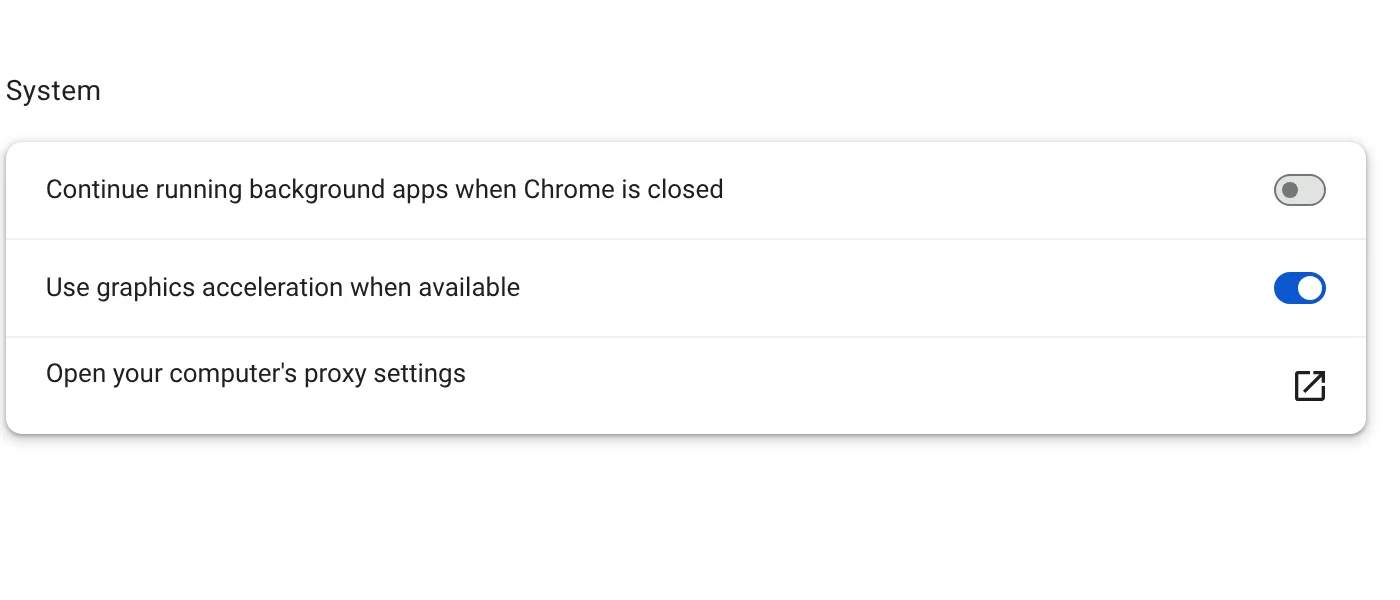
On Windows, Chrome can keep running in the background after you close the last window, so nothing is cleaned until you restart the computer. To check, open Chrome's settings, search for background and turn off Continue running background apps when Google Chrome is closed.
On a Mac, closing the last window does not quit Chrome. Quit it with Cmd + Q, or use the timer or screen-lock cleaning instead.
Prefer not to wait until closing?
You can combine triggers: clean history every hour, cookies only when Chrome closes, and everything when the screen locks. Each trigger can clean different data. The setup guide shows how.
The three on-device site data options
Chrome's setting lives under Settings → Privacy and security → Site settings → Additional content settings → On-device site data. Google describes the three choices like this:
- Allow sites to save data on your device. Sites are more likely to work as you expect.
- Delete data sites have saved to your device when you close all windows. Sites still work but are less likely to remember you between visits.
- Don't allow sites to save data on your device. Not recommended; sites may not work as expected.
Note what is missing from that list: browsing history. This setting is about cookies and site storage only. Your list of visited pages stays until you clear it, which is why a separate rule for history is needed.
Managed computers at work or school can do more. Google's enterprise documentation describes a policy that clears chosen data types when Chrome closes, set by an administrator. On a personal computer there is no such switch, so an extension is the practical way to get the same result.
Side effects to expect
Clearing on close means signing in again after every restart, unless you protect the sites you use daily. Google also notes that sync can switch itself off at every restart when site data is deleted on close. Why websites keep logging you out covers how to keep those sign-ins.
The bottom line
Chrome's built-in option clears cookies and site data when you close every window, but it leaves your history alone. For history as well, use a cleaning rule that runs on close and protect the few sites you want to stay signed in to.
Questions and answers
Why is my history still there after I enabled Chrome's delete-on-close setting?
That setting only removes cookies and site data. History, cache and the download list are not touched.
What if Chrome closes before the extension finishes?
Auto History Wipe finishes the cleaning as soon as Chrome starts again, before you open any page.
Does this work on a Mac?
Yes, but closing the last window does not quit Chrome on a Mac. Quit with Cmd + Q, or use the timer or screen-lock cleaning.
Sources
The official help pages behind this guide. Chrome moves menus around between versions; if yours looks different, these pages show the current steps.