
In short: When history sync is on, Chrome shares your history with every device signed in to the same Google Account, and deleting history on one device removes it from the others too. To keep history only on one computer, turn off history in the sync settings. Clearing never signs you out of Chrome itself.
What sync shares
Signed in to Chrome, you can choose what is synced: bookmarks, passwords, addresses, open tabs, history and more. With history on, your laptop's browsing shows up on your phone, and the other way round.
What deleting does across devices
| History sync | You clear history on your laptop | Effect on your phone |
|---|---|---|
| On | Deleted on the laptop | Deleted on the phone too, within a short time |
| Off | Deleted on the laptop | Nothing changes on the phone |
This works in your favour when you want things gone everywhere. It works against you when you want to keep history on one device and clean another. Automatic cleaning on a synced profile cleans every synced device.
Keep history on one device only
- Open Chrome's settings and select You and Google, then your account name, and look at History and tabs (older versions call this Manage what you sync).
- Turn off History (in some versions, History and tabs).
- Clear history on each device separately from then on.
Your Google Account copy
With sync and Web & App Activity on, Google may also keep Chrome browsing in your account activity. That copy is managed at myactivity.google.com, as explained in deleting your Google search history.
Signed in, but signed out of Google sites?
One more sync side effect: if you are signed in to Chrome, Chrome restores your Google sign-in after cookies are cleared, so Gmail and YouTube stay signed in. That is by design and no extension can change it. If you need to be signed out of Google on a computer, sign out of Chrome itself.
Turn off history sync, step by step
Google's current steps for a computer are short:
- Open Chrome and select ⋮ → Settings.
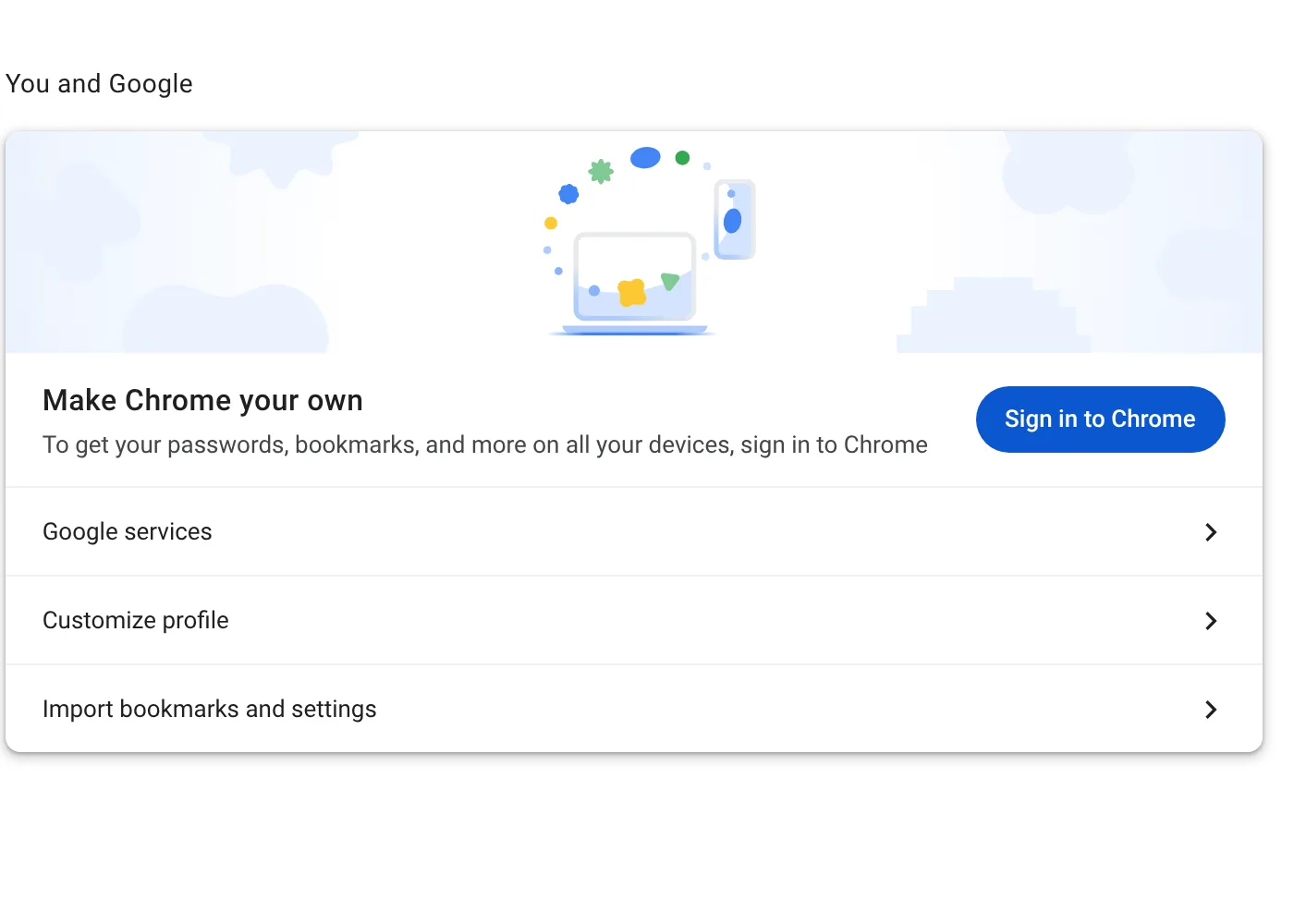
- Select You and Google, then your account name.
- Turn History and tabs off to stop syncing them, or on to start again.
Turning off sync completely is different: from the profile picture, select Sync is on → Turn off. Google notes that you keep your bookmarks, history and passwords on that computer, and that turning sync off also signs you out of other Google services such as Gmail.
Remove what is already in your account
Stopping sync does not delete what Google already stores. To remove synced data from your account, Google points to chrome.google.com/sync and the Clear data option there. Your separate Web & App Activity, if it includes Chrome history, lives at myactivity.google.com and has its own delete and auto-delete controls.
A related surprise: if sync keeps switching off every time you close Chrome, Google says the cause is usually the on-device site data setting that deletes data when all windows close. Allowing sites to save data, or protecting your Google sign-in, keeps sync on.
The bottom line
With history sync on, deleting a page on one device deletes it everywhere you are signed in, which is usually what you want. If you would rather keep each device separate, turn off History and tabs, then clear the account copy once.
Questions and answers
Does clearing history on my computer delete it on my phone?
Yes, if history sync is on for both. Turn off history sync to keep them separate.
Does clearing cookies sign me out of Chrome?
No. You stay signed in to Chrome, and Chrome restores your Google sign-in.
Can I sync bookmarks but not history?
Yes. Choose what to sync and leave history off.
Sources
The official help pages behind this guide. Chrome moves menus around between versions; if yours looks different, these pages show the current steps.