
In short: Give everyone their own computer account or Chrome profile, switch off password and address saving if you share one profile, and clean history automatically when you lock the screen or close Chrome. Lock the screen every time you step away.
Start with separate accounts
The single best step costs nothing: give every person their own user account on the computer, or at least their own Chrome profile. Separate profiles have separate history, cookies, bookmarks and passwords, so nobody stumbles across anyone else's tabs. To add a profile, click your profile picture in Chrome and choose Add.
| Setup | Privacy | Effort |
|---|---|---|
| Separate computer accounts | Best: files are separate too | A few minutes, once |
| Separate Chrome profiles | Good: browsing is separate | One minute |
| One shared profile | Weak: everyone sees everything | None, which is the problem |
If you share one profile
Sometimes separate profiles are not realistic, a kitchen laptop or a reception desk for example. Then make the shared profile forget quickly:
- Turn off saving passwords and addresses under Passwords and autofill, so nobody's email pops up in the next person's form. More in deleting autofill suggestions.
- Don't turn on sync with a personal Google Account in a shared profile. Your history would follow you to that computer, and theirs to your phone.
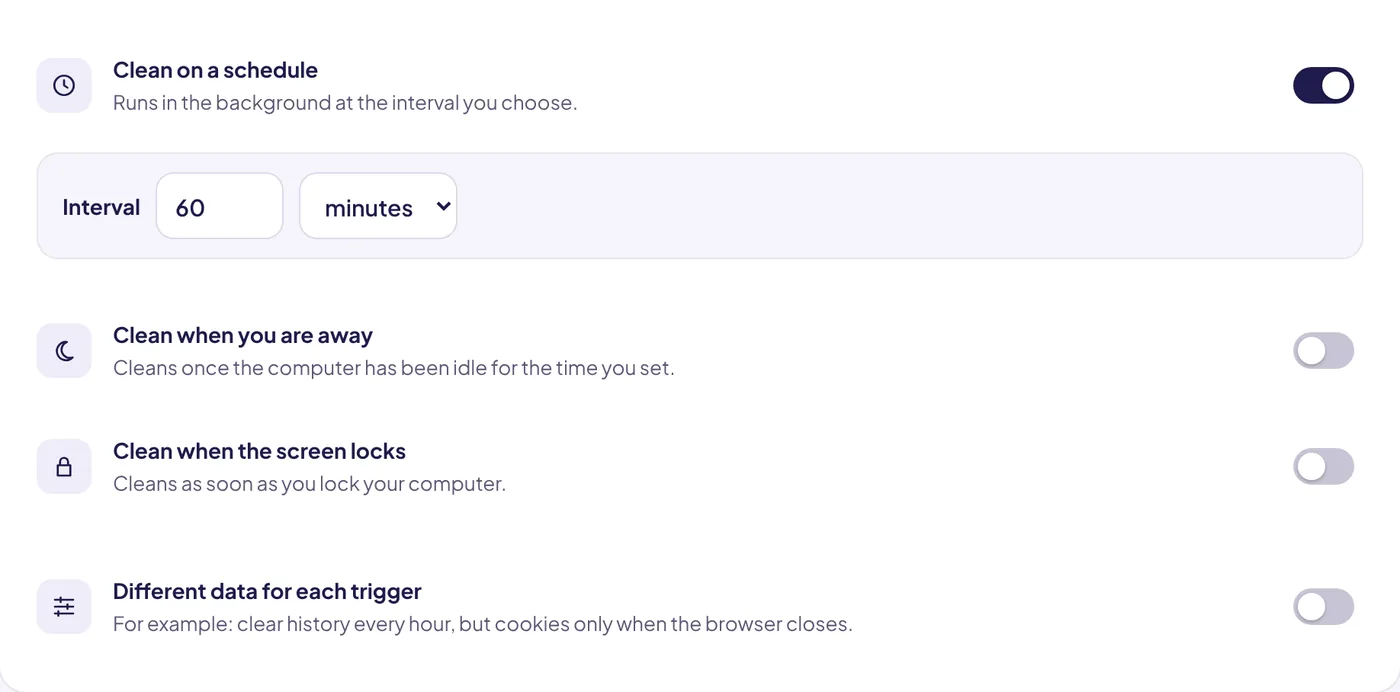
- Clean automatically when the screen locks. In Auto History Wipe, switch on Clean when the screen locks and Clean when you are away.
Lock the screen every time
Windows + L on Windows, Ctrl + Cmd + Q on a Mac. It takes a second and stops the most common problem: someone sitting down at a computer that is still open on your mail.
Families and children
For children, a separate profile managed with Google Family Link is the right tool; it gives parents controls that a cleaner does not. Automatic cleaning is for adults who want their own browsing to stay theirs, not for supervising others. And the honest part: if you use it to hide something from a partner, that is a conversation no extension can solve.
A quick checklist
Set up a Chrome profile for each person
Chrome profiles are the simplest fix when the computer has one Windows or Mac account for everyone. Each profile has its own history, bookmarks, passwords and sign-ins. Open the profile picture at the top right and choose to add a new profile; each person can then sign in with their own Google Account or use the profile without one.
Profiles are about convenience and tidiness, not security. Anyone can switch to another profile from the same menu unless the computer itself has separate user accounts. For a teenager and a parent that is often enough; for flatmates who want real privacy, separate computer accounts are better.
Visitors and one-off use
When a friend wants to check something quickly, Guest mode is the right tool. Google says that in Guest mode the visitor cannot see or change any other profile's info, and that browsing activity is deleted from the computer when they exit. The shortcut Ctrl + Shift + M opens the profile menu where Guest lives.
Do not turn on sync on a shared profile
Google's sign-in help is explicit: only turn on Chrome sync on devices you own, and use Guest mode on a public computer. On a shared family profile, sync would copy everyone's browsing into one Google Account. Give each person their own profile before anyone turns sync on.
The bottom line
On a shared computer, give each person their own Chrome profile, lock the screen when you step away and hand visitors a Guest window. Add automatic cleaning to the profiles that need it, and keep sync for profiles that belong to one person.
Questions and answers
Is incognito enough on a shared computer?
For a quick search, yes. For daily use it is tiring because you start signed out every time. Separate profiles or automatic cleaning work better.
Can other people see my history if we use different Chrome profiles?
Not easily. Profiles are separate, though anyone with access to your computer account could open your profile.
Does cleaning on screen lock sign me out?
Only of sites whose cookies are cleaned. Add the ones you use every day to protected sites.
Sources
The official help pages behind this guide. Chrome moves menus around between versions; if yours looks different, these pages show the current steps.