
In short: Press Ctrl + J (Cmd + Shift + J on a Mac) to open your downloads. Click the × next to an entry to remove it, or Clear all to empty the list. The files themselves stay in your Downloads folder until you delete them there.
Where Chrome keeps the list
Every file you download gets an entry on Chrome's downloads page: the file name, where it came from and when. You can open it from the menu (⋮ → Downloads), with the shortcut above, or by typing chrome://downloads into the address bar.
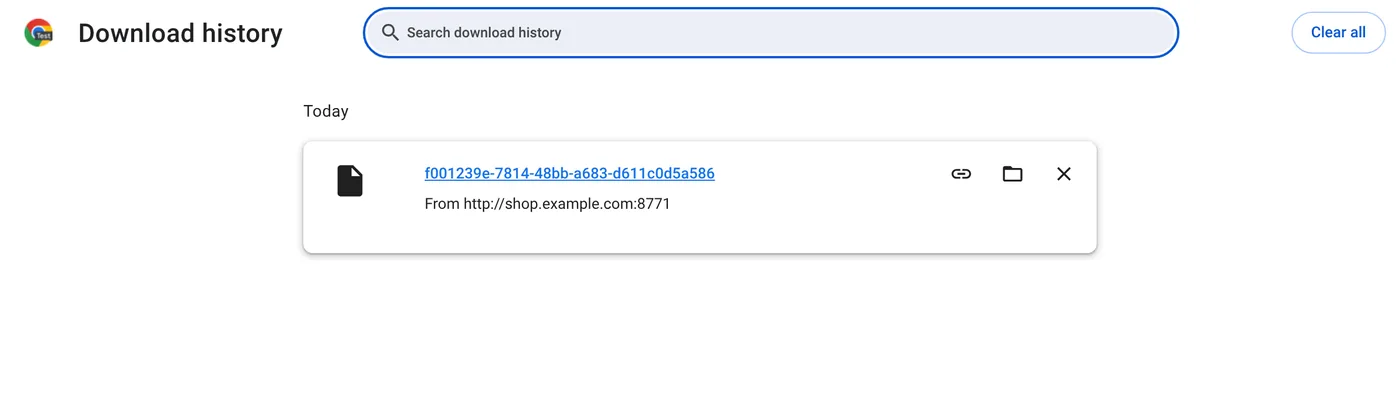
That last part is easy to miss. Even if the file is gone, the entry still shows which site you downloaded it from, so the list can say as much about your browsing as your history does.
Remove one entry or clear the list
- One entry: click the × on the right of it.
- Everything: click Clear all at the top right of the page.
- A time range: press Ctrl + Shift + Delete, tick Download history and choose the range.
Removing the entry does not delete the file
This is the part that surprises people. Clearing the download history only wipes Chrome's list. The PDF, the photo or the installer is still sitting in your Downloads folder, and your operating system may also show it under recent files.
| What you do | Chrome's list | The file on disk |
|---|---|---|
| Click × on an entry | Entry removed | Still there |
| Clear all / Delete browsing data | List emptied | Still there |
| Delete the file in your folder | Entry stays, marked as deleted | Gone (in the bin) |
For a private download, delete the file from the folder, empty the recycle bin or trash, and then clear the entry in Chrome.
Keep the list empty automatically
The Standard profile in Auto History Wipe includes download history. When it cleans, on close, on a timer or when you lock the screen, the list is emptied along with your history. One detail worth knowing: Chrome cannot clear download entries per site, so protected sites do not keep theirs. The full breakdown of what each data type covers has more on this.
Downloads on an Android phone
On Android the list works a little differently. Open ⋮ → Downloads in Chrome. If your address bar is at the bottom, swipe up on it to find Downloads. Here, Google's help page says that tapping ⋮ → Delete next to a file deletes the file itself, and you can touch and hold several files to delete them together. So on a phone, removing an entry and removing the file are usually the same action, unlike on a computer.
Files you download on Android are also visible in the Files app, which is the easier place to clean up old PDFs and images in bulk.
Blocked and dangerous downloads
If Chrome blocks a download because it looks dangerous, the warning also appears in your downloads list. Google notes that you can remove it with Delete from history, and that if you do nothing, Chrome removes the warning from the list after one hour.
Who can see the list
The download list is stored with your Chrome profile on that device. Anyone who opens Chrome on your computer can open it with the shortcut, which is why it matters on shared computers. Downloads made in an incognito window are not added to the list once the window is closed, but the file itself stays in your Downloads folder. Privacy on a shared computer has more on that situation.
The bottom line
Removing an entry from Chrome's download list hides the record but leaves the file where it is, so clean the folder separately if the file itself is the problem. For a list that never builds up, tick Download history in your regular or automatic cleaning.
Questions and answers
Does clearing download history delete the downloaded files?
No. Only the list in Chrome is cleared. Delete the files from your Downloads folder yourself.
Can I see downloads I removed from the list?
Not in Chrome. Once an entry is removed it does not come back, although the file may still be in your Downloads folder.
Does incognito keep a download list?
Incognito does not keep the list after you close the window, but the downloaded files stay on your computer.
Sources
The official help pages behind this guide. Chrome moves menus around between versions; if yours looks different, these pages show the current steps.