
In short: Chrome has no switch that stops it recording history. The closest options are browsing in incognito or Guest mode, deleting history automatically as you go, or, on a computer you manage, the SavingBrowserHistoryDisabled policy. For everyday browsing, automatic cleaning is the least disruptive.
Why there is no off switch
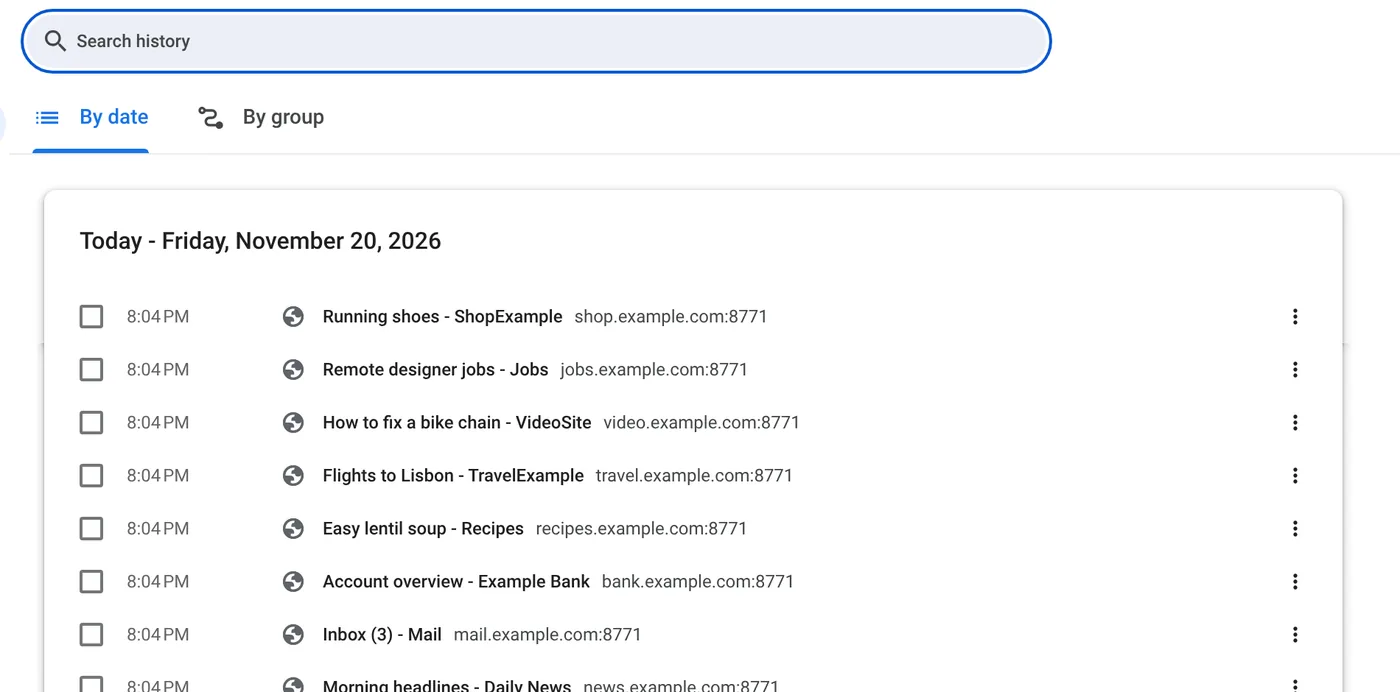
History feeds a lot of Chrome: address-bar suggestions, the new-tab page shortcuts, the back button across restarts. Google has never added a simple "don't save history" toggle to the normal settings, and the setting that sounds like one, deleting data when all windows close, only removes cookies and site data.
Your options, compared
| Option | History saved? | Signed in? | Best for |
|---|---|---|---|
| Incognito window | No | No, you start signed out | One-off searches and gifts |
| Guest mode | No | No | Letting someone borrow your computer |
| Delete as you go | Yes, until you delete it | Yes | Removing the odd page |
| Automatic cleaning | Briefly, then deleted | Yes, on protected sites | Everyday browsing |
| Browser policy | No | Yes | Computers you manage, advanced users |
1. Incognito and Guest mode
Both throw away history when you close the window. The catch is that every session starts from scratch: no sign-ins, and in incognito most extensions are off. They are great for a quick private search and tiring for a whole day. Incognito, Guest mode and automatic cleaning compared goes into the differences.
2. Delete as you go
You can remove single pages or a whole site from chrome://history. It works, but only for what you remember to delete. Here is how to delete one site from your history.
3. The browser policy (advanced)
Chrome supports a policy called SavingBrowserHistoryDisabled, meant for companies and schools. When it is set, Chrome stops saving history altogether. You can set it on a personal computer too (in the Windows registry or a configuration profile on a Mac), but there are side effects: Chrome will say it is "managed by your organization", and you lose history-based suggestions. Only do this if you are comfortable editing system settings.
4. Automatic cleaning
This is the practical middle ground: browse normally, stay signed in, and let your history disappear on a schedule. With Auto History Wipe you choose the moment, when Chrome closes, every hour, when you lock the screen, and two finer controls:
- Always-forget sites: visits to the sites you list are deleted the moment they happen, so they never show up at all.
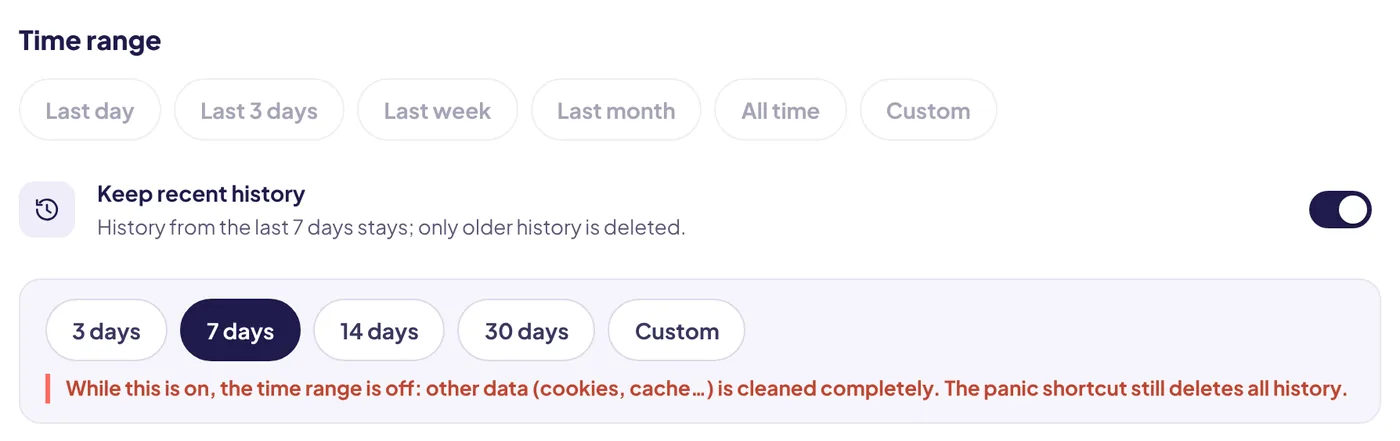
- Keep recent history: keep the last few days for convenience and delete everything older.
What the policy actually does
The policy is called SavingBrowserHistoryDisabled and appears in Google's list of Chrome Enterprise policies. When it is enabled, browsing history is not saved; when it is disabled or not set, history is saved as normal. It is meant for managed computers, so on a personal machine it means editing the Windows registry, a Mac configuration profile or a policy file on Linux. A related policy, AllowDeletingBrowserHistory, controls the opposite: whether people are allowed to delete history at all. Schools and companies sometimes set it, which is why the Delete browsing data window can be greyed out on a work laptop.
Two side effects are worth knowing before you try it. With history switched off, the address bar has nothing to suggest from and the New Tab page has no recent sites. And if your computer is managed by an employer, their settings win over anything you set locally.
Picking the right option
- You want no record of one session: incognito.
- Someone else is using your computer: Guest mode.
- You want normal browsing with a short memory: automatic cleaning on a schedule or when Chrome closes.
- You manage the computer and want no history ever: the policy.
Remember the account copy too. If Web & App Activity includes Chrome history, Google can keep a record even when the local list is empty. Turn on auto-delete there.
The bottom line
Chrome always records history unless an administrator policy says otherwise, so the practical choices are incognito, Guest mode or deleting automatically. For everyday browsing, automatic cleaning keeps Chrome useful while making sure the list never grows.
Questions and answers
Is there a pause history button in Chrome?
No. Google has not added one. Incognito and Guest mode are the closest built-in options.
Does Web & App Activity paused mean Chrome stops saving history?
No. Pausing it in your Google Account stops saving activity to your account. Chrome still keeps local history on your computer.
Will the policy break anything?
It stops history-based suggestions and shows a "managed" notice in Chrome. Everything else keeps working.
Sources
The official help pages behind this guide. Chrome moves menus around between versions; if yours looks different, these pages show the current steps.