
In short: Use incognito for a short private session of your own, Guest mode when someone else borrows your computer, and automatic cleaning for everyday browsing when you want to stay signed in to some sites but not keep a history. They solve different problems and work well together.
Side by side
| Incognito | Guest mode | Automatic cleaning | |
|---|---|---|---|
| Saves history | No | No | Briefly, then deleted |
| Your bookmarks | Available | Not available | Available |
| Signed in to sites | No, fresh each time | No | Yes, on protected sites |
| Extensions | Off unless you allow them | Off | On |
| Downloads | Files stay, list is not kept | Files stay | List cleared, files stay |
| Best for | Gifts, one-off searches | Lending your computer | Everyday browsing |
| How to open | Ctrl + Shift + N | Profile menu → Guest | Set up once |
Incognito: private from your own browser
An incognito window keeps nothing after you close it: no history, no cookies, no form data. You still see your bookmarks and settings. It does not hide you from websites, your employer or your internet provider; here is what it really hides.
Guest mode: a clean browser for someone else
Guest mode opens a separate window that cannot see your bookmarks, history, passwords or open tabs. Hand it to a friend and they cannot browse your stuff, and nothing they do is kept. Open it from your profile picture → Guest.
Automatic cleaning: normal browsing, short memory
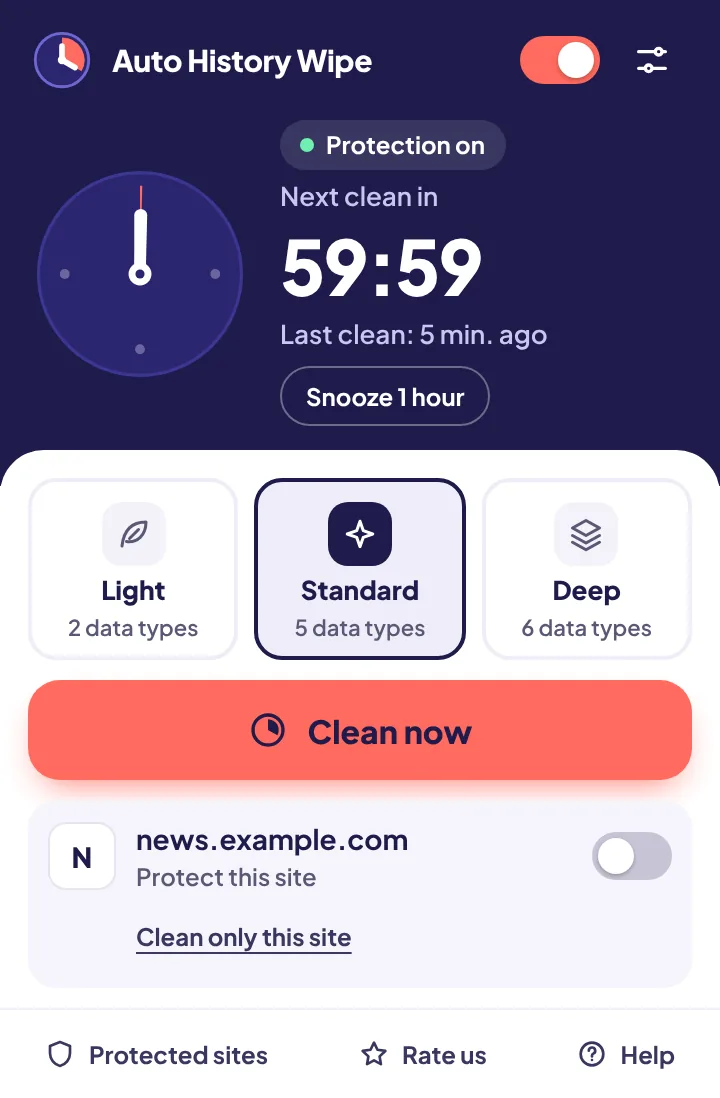
Most of the day you want your extensions, your bookmarks and your signed-in mail. Automatic cleaning keeps all of that and deletes what you don't want kept, when Chrome closes, on a timer or when you step away. With Auto History Wipe you also choose which sites stay signed in and which sites are forgotten immediately.
Using them together
On a phone, the choice is simpler
Google says Guest mode is not available on mobile devices; on a phone the private option is an incognito tab. Chrome can lock incognito tabs behind Face ID, Touch ID or your passcode on iPhone, and Android has a similar setting, which matters if you hand your phone to someone else.
What each one hides, according to Google
- Incognito: Google says history, cookies and site data, and information entered in forms are not saved on your device. Bookmarks and downloads you make are kept.
- Guest: Google says the guest cannot see or change any other profile's info, and browsing activity is deleted from the computer when they exit.
- Neither hides your activity from the websites themselves, your employer or school, or your internet provider.
Google also recommends Guest mode when you sign in on a computer that is not yours, such as at a library. The public computer checklist turns that into steps.
A simple rule of thumb
Ask who the privacy is for. If it is for you, from other people who use your device, incognito or automatic cleaning. If it is for your own data, from someone borrowing the device, Guest mode. If it is from websites and advertisers, none of the three is enough on its own; block third-party cookies as well.
The bottom line
Use incognito for a private session of your own, Guest mode when someone borrows your computer, and automatic cleaning for everyday browsing where you want to stay signed in. None of them hides you from the sites you visit or the network you are on.
Questions and answers
Is Guest mode more private than incognito?
For the person using it, both discard their data. Guest mode also hides your own bookmarks and history from them, which incognito does not.
Can extensions run in incognito?
Only if you allow each extension in its details page under "Allow in Incognito".
Does automatic cleaning work with incognito windows?
It cleans your normal profile. Incognito windows already discard their data when closed.
Sources
The official help pages behind this guide. Chrome moves menus around between versions; if yours looks different, these pages show the current steps.