
In short: Open Chrome's settings, go to Privacy and security → Third-party cookies and choose Block third-party cookies. Sites you visit can still use their own cookies, so you stay signed in. If a site breaks, add it under Sites allowed to use third-party cookies.
First-party vs third-party
A first-party cookie comes from the site in your address bar and usually does useful work, like keeping you signed in. A third-party cookie comes from another company embedded on that page, often an ad network, and because the same company sits on thousands of sites, its cookie can follow you across all of them. What cookies are has the longer story.
Block them
- Open Settings → Privacy and security.
- Click Third-party cookies.
- Choose Block third-party cookies.
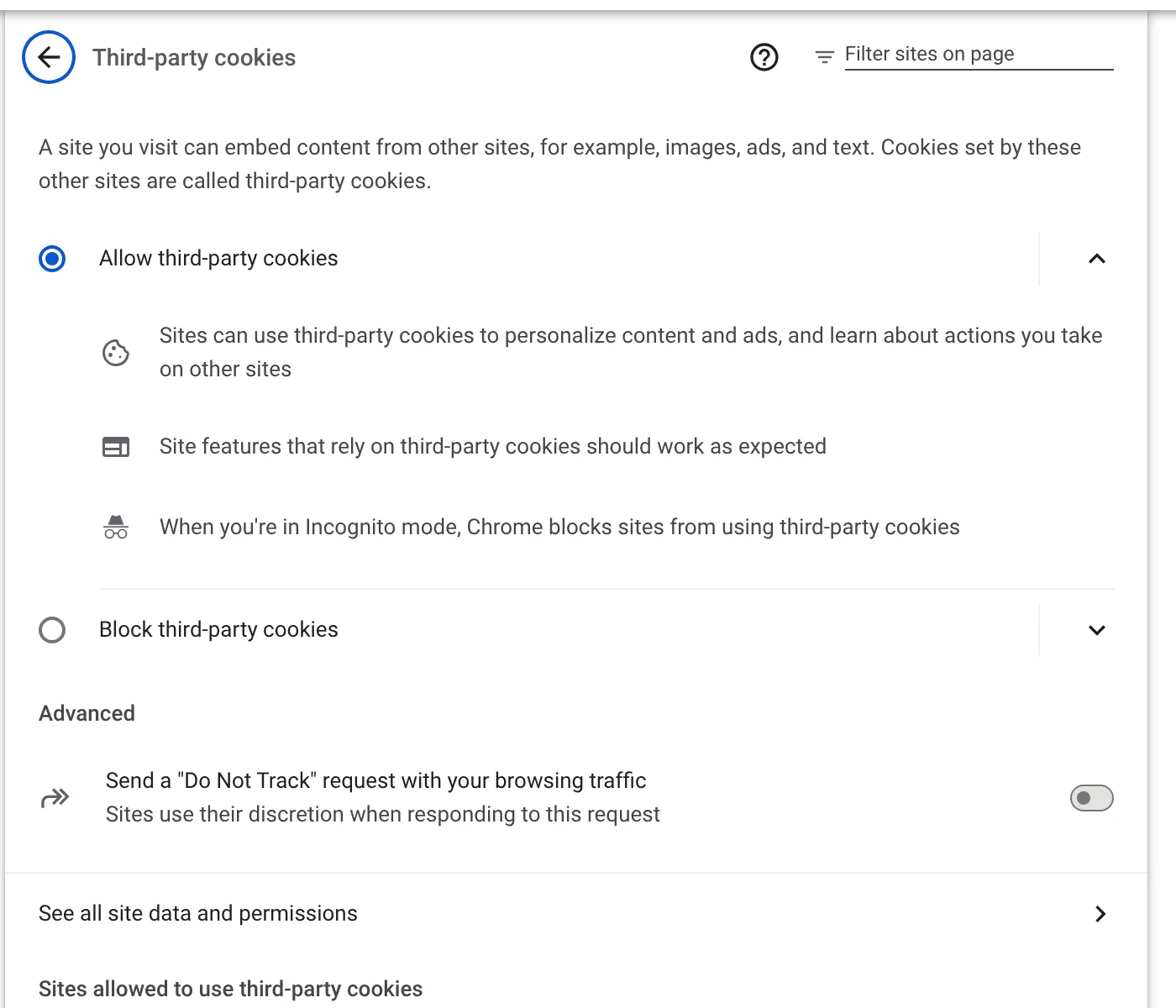
If a site stops working
Some sign-in buttons, payment pages and embedded videos rely on third-party cookies. If something breaks, add the site under Sites allowed to use third-party cookies on the same page. Use the [*.] form, for example [*.]example.com, to include all its subdomains.
What blocking does and doesn't do
| Blocking third-party cookies | Clearing cookies regularly | |
|---|---|---|
| Stops ad networks following you between sites | Mostly | Partly: they start over each time |
| Signs you out of sites | No | Yes, unless protected |
| Removes first-party tracking | No | Yes |
| Affects fingerprinting | No | No |
The two work well together: block third-party cookies so you are not followed, and clear first-party cookies regularly while keeping your everyday sites. Neither stops fingerprinting.
Clearing what is already there
Blocking only affects new cookies. To remove the ones already stored, clear cookies once with the shortcut, or let Auto History Wipe do it when Chrome closes.
Block them on Android and iPhone
Chrome on phones has the same idea, with the switch in a slightly different place. On Android, open ⋮ → Settings → Privacy and security → Third-party cookies. Google also describes a per-site route: tap the icon on the left of the address bar, then Cookies and site data, and turn third-party cookies on or off for that one site.
Incognito windows already block third-party cookies by default, on computers and phones. If a site that depends on them does not work in incognito, you can allow them for that site only.
How this fits with Chrome's ad privacy settings
Blocking third-party cookies is one layer. Chrome also has Privacy and security → Ad privacy, where you can switch off ad topics, site-suggested ads and ad measurement. Google explains that these features let sites show ads without third-party cookies following you, and that you can turn each one off at any time. If you want the fewest signals possible, block third-party cookies and switch the ad privacy features off as well.
None of this removes cookies that are already stored. To start fresh, clear cookies once after changing the setting, then keep the sites you sign in to every day on an exception list so you are not logged out. Clearing cookies without logging out shows how.
Signs a site needs an exception
A video that never loads inside an article, a comment box that stays blank, a "sign in with" button that opens and closes again, or a payment page that keeps looping back. If any of these appear right after you block third-party cookies, add that one site under the allowed list instead of turning the block off for everything. Most people end up with fewer than five exceptions.
The bottom line
Blocking third-party cookies takes a minute and costs you very little, because the sites you visit keep their own first-party cookies. Add exceptions for the odd site that breaks, and clear old cookies once so the setting starts from a clean slate.
Questions and answers
Does Chrome block third-party cookies by default?
Only in incognito windows. In normal windows they are allowed unless you change the setting.
Will blocking third-party cookies sign me out?
No. Sign-ins use first-party cookies, which are not blocked.
Why does a site still work after I blocked them?
Most sites only need their own cookies. Third-party cookies are mostly used for ads and cross-site tracking.
Sources
The official help pages behind this guide. Chrome moves menus around between versions; if yours looks different, these pages show the current steps.