
In short: Run Safety Check, block third-party cookies, review site permissions for location, camera and notifications, check ad privacy settings, decide what you sync, and set up automatic cleaning for history. Most of it is in Settings → Privacy and security.
Where to start
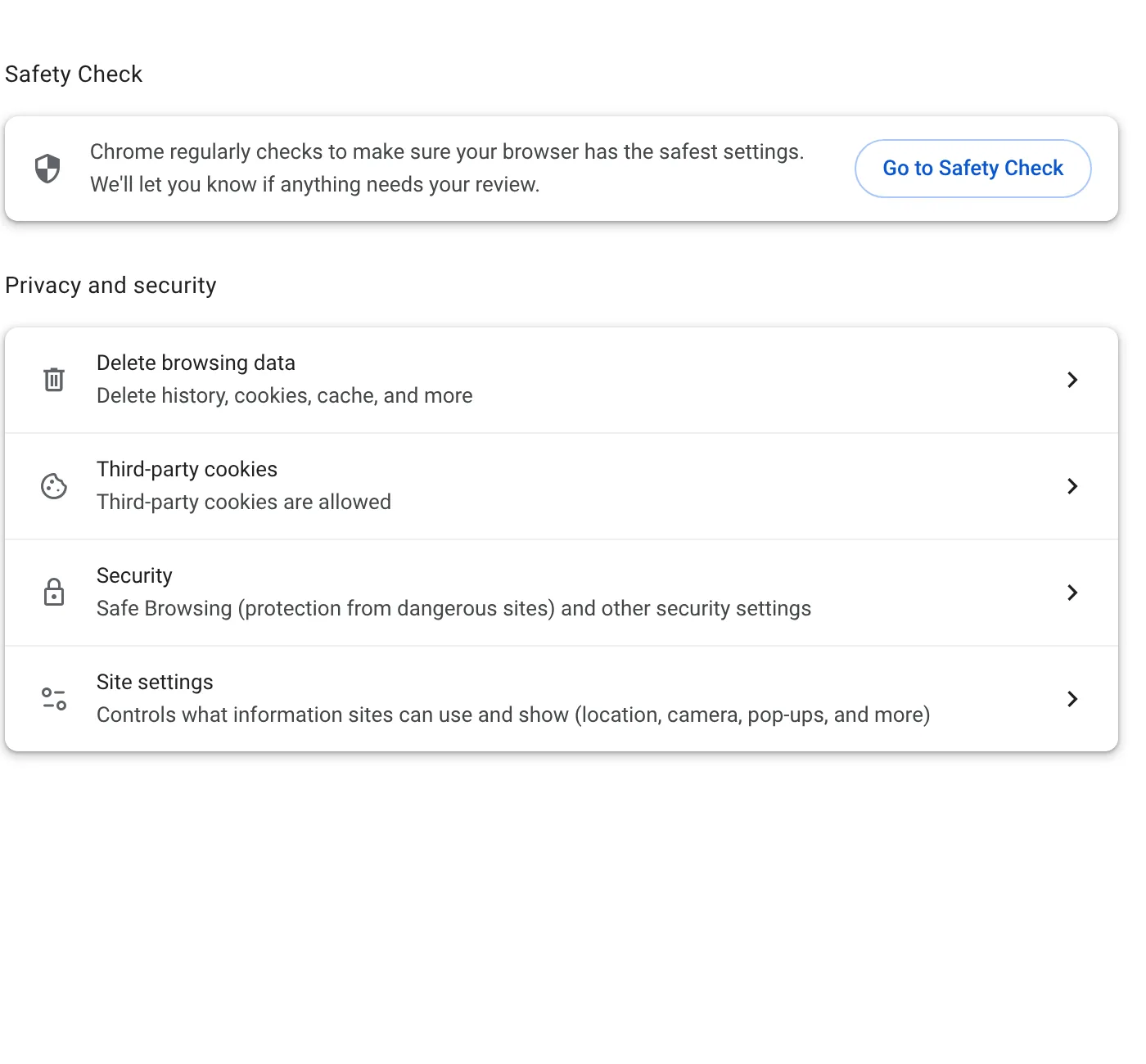
Open Chrome's settings and click Privacy and security. Almost everything below starts on this page.
The checklist
| # | Setting | Where | Suggested |
|---|---|---|---|
| 1 | Safety Check | Privacy and security → Safety Check | Run it; fix what it finds |
| 2 | Third-party cookies | Privacy and security → Third-party cookies | Block |
| 3 | Site permissions | Privacy and security → Site settings | Review location, camera, mic, notifications |
| 4 | Ad privacy | Privacy and security → Ad privacy (if shown) | Turn off what you don't want |
| 5 | Safe Browsing | Privacy and security → Security | Standard or Enhanced, not off |
| 6 | Sync | You and Google → your account | Sync only what you need |
| 7 | Passwords | Passwords and autofill → Google Password Manager | Check for weak or leaked passwords |
| 8 | Addresses and cards | Passwords and autofill | Remove old entries |
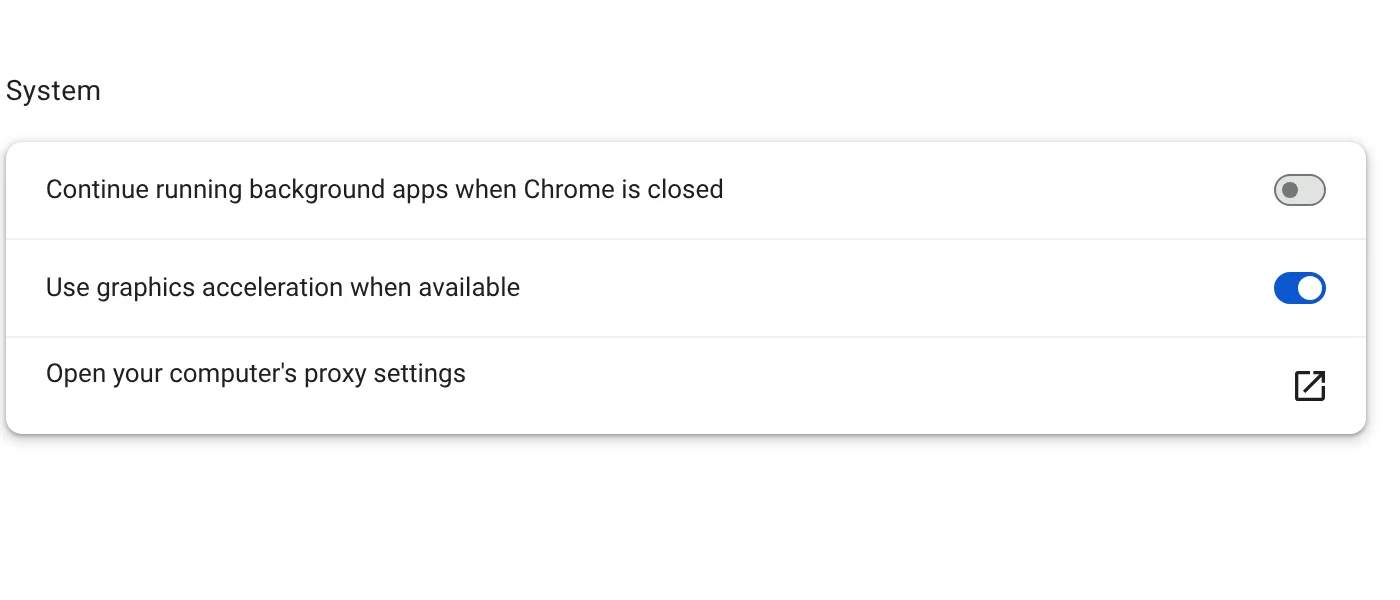
| 9 | Background apps | System | Off, so Chrome really closes |
| 10 | Automatic cleaning | An extension | History on close or on a timer |
1. Safety Check
It looks for compromised passwords, Safe Browsing status, updates and extensions you no longer use. Do whatever it flags first.
2. Third-party cookies
Blocking them stops much of the cross-site ad tracking without signing you out anywhere. Step by step.
3. Site permissions
Over time you click "Allow" for more sites than you remember. Under Site settings, check which sites can use your location, camera, microphone and notifications, and remove the ones you don't recognise.
4–5. Ad privacy and Safe Browsing
Ad privacy settings, where your version shows them, control whether Chrome helps sites choose ads for you. Safe Browsing warns you about dangerous sites; keep it on.
6–8. Sync, passwords and autofill
Sync only what you need, see how sync affects your history. Let the password checker find weak passwords, and tidy up old autofill entries.
9. Background apps
10. Automatic cleaning
Chrome has no built-in way to delete history on a schedule, so this is the one setting you add yourself. Auto History Wipe cleans when Chrome closes, on a timer or when you lock the screen, and keeps your everyday sites signed in. Here is how it compares to the other options.
Run the same check on your phone
Chrome on Android and iPhone has its own Safety Check. On Android open ⋮ → Settings → Safety check; on iPhone open … → Settings → Safety check → Check now. Google says Chrome also runs it automatically in the background, and on Android it removes notification permissions from sites that Safe Browsing finds tricking people into allowing them.
Phone permissions deserve a closer look than desktop ones, because the location and camera prompts appear more often. Open Settings → Site settings on the phone and go through Location, Camera, Microphone and Notifications.
How often to repeat it
- After a big Chrome update. New features sometimes arrive switched on. A two-minute look at Privacy and security is enough.
- When you install a new extension. Check what it can read on the extensions page.
- Every few months. Clear out site permissions you granted once and forgot about.
The settings above change what Chrome shares going forward. They do not remove what is already stored, so finish the checklist by clearing old data once. What each Delete browsing data option removes helps you choose the boxes.
The bottom line
Ten minutes in Chrome's settings covers most of what matters: Safety Check, third-party cookies, site permissions, ad privacy and sync. Do it on every device you use, then add automatic cleaning so what you have tidied stays tidy.
Questions and answers
Where are Chrome's privacy settings?
Open the menu ⋮ → Settings → Privacy and security, or type chrome://settings/privacy into the address bar.
Is Enhanced Safe Browsing worth it?
It gives stronger protection by checking more with Google. Standard is a reasonable default if you prefer to share less.
How often should I run Safety Check?
Every few months, or whenever Chrome suggests it.
Sources
The official help pages behind this guide. Chrome moves menus around between versions; if yours looks different, these pages show the current steps.
- Google Chrome Help: Manage Chrome safety and security
- Google Chrome Help: Choose your Safe Browsing protection level
- Google Chrome Help: Delete, allow, and manage cookies in Chrome
- Google Chrome Help: Manage your ad privacy in Chrome
- Google Chrome Help: Get your bookmarks, passwords, and more on all your devices