
In short: Browsing history removes the list of pages you visited. Cookies and other site data sign you out of most sites. Cached images and files only free up space. Download history clears the list but not the files. Autofill form data removes typed form entries. Passwords are managed separately.
The window at a glance
Open it with Ctrl + Shift + Delete (all shortcuts here). The first four options are shown straight away; click Show more for the rest.
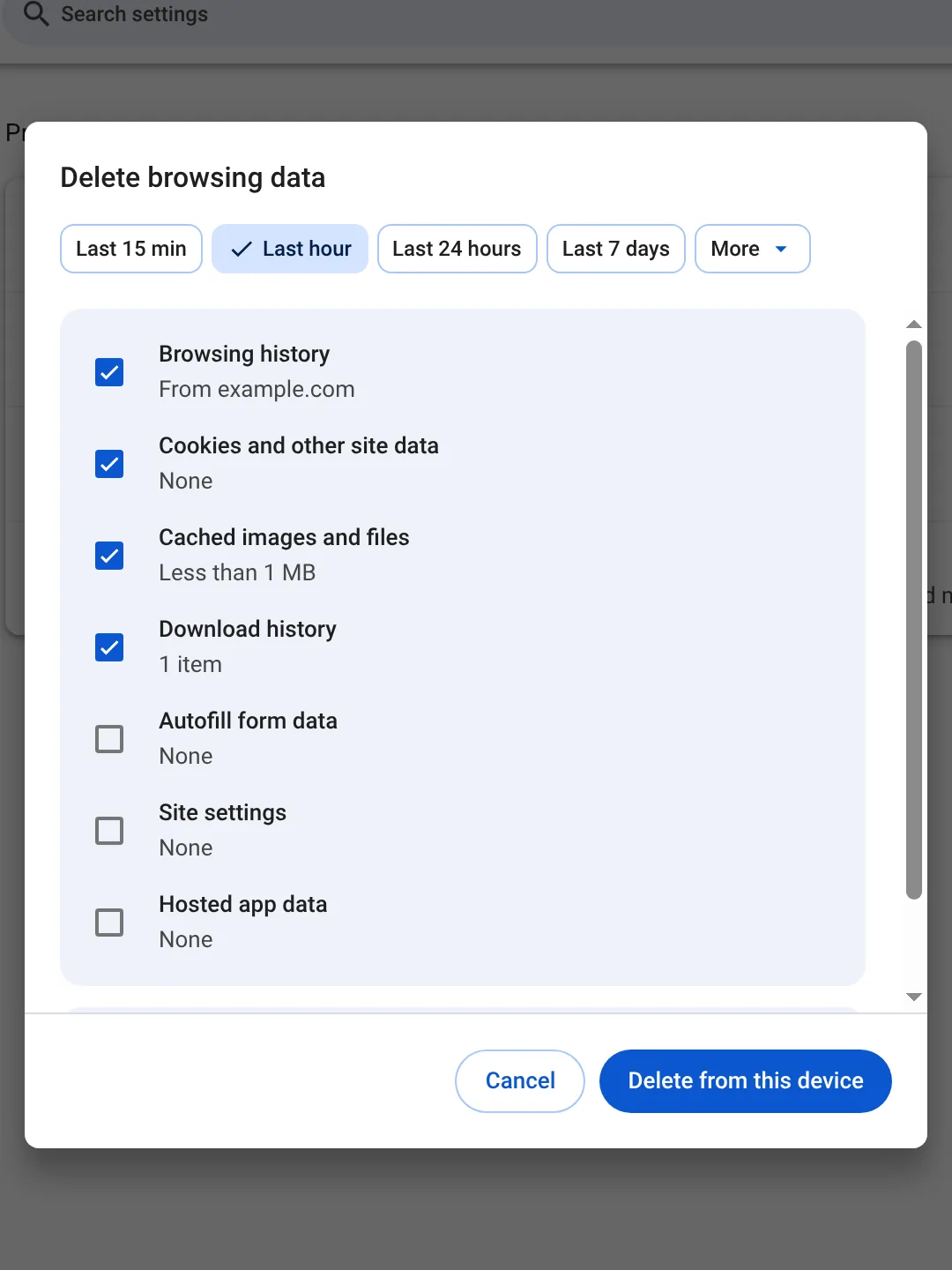
Each option explained
| Option | What it removes | What stays | Signs you out? |
|---|---|---|---|
| Browsing history | The list of pages you visited and their address-bar suggestions | Bookmarks, open tabs, the files you downloaded | No |
| Cookies and other site data | Cookies, local storage, IndexedDB, service workers | Your Google sign-in if you are signed in to Chrome | Yes, on most sites |
| Cached images and files | Copies of images, scripts and pages | Everything else | No |
| Download history | Entries on the downloads page | The downloaded files on your disk | No |
| Autofill form data | Words and values typed into forms | Saved addresses and cards, which have their own settings | No |
| Site settings | Permissions you gave sites: location, camera, notifications | Your general settings | No |
| Hosted app data | Data of old Chrome apps | Extensions and their data | No |
The time range matters more than people think
The buttons at the top choose how far back Chrome goes: the last 15 minutes, the last hour, 24 hours, 7 days, 4 weeks or all time. Anything older than the range you pick stays exactly where it was. If you clear "Last hour" by habit, last week's browsing is still there.
What it never touches
- Bookmarks: never deleted by this window.
- Saved passwords: in recent versions they are managed in Google Password Manager, not here.
- Extensions and their settings.
- Your Google Account activity. That is a separate copy; see deleting your Google search history.
- Anything outside Chrome: your router, your internet provider, the websites' own logs. Does clearing history delete everything? covers all of it.
Which ones are safe to tick every day?
If you want a clean browser without signing in all day, tick Browsing history, Cached images and files and Download history, and leave cookies alone. That is exactly the Light profile in Auto History Wipe, plus downloads. If you want cookies gone too, keep your everyday sites signed in with protected sites.
A note on signing in to Google
One result surprises people: Google says that if you delete cookies while signed in to Chrome, Chrome refreshes the Google cookies that keep you signed in, so Chrome keeps working. To remove those as well, sign out of Chrome first. If you only want to be signed out of Google on every website, signing out of Chrome does that.
When sync is on
Google's help page adds a warning about synced data: if you sync a type of data, deleting it on one device deletes it everywhere it is synced, including your Google Account. That applies to history and also to things like passwords and autofill entries if those are synced. Check what you sync before ticking the boxes in the Advanced view.
Phones have fewer boxes
On Android, the first screen deletes history for a short range, 15 minutes by default; More options shows the full list. On iPhone, the list is under Settings → Privacy and Security → Delete Browsing Data and uses slightly different names, such as Cookies, Site Data. Clearing Chrome on a phone walks through both.
The bottom line
Delete browsing data removes exactly the boxes you tick, for exactly the time range you pick, and with sync on it reaches your other devices too. Browsing history, cache and download history are safe to tick every day; cookies and passwords deserve a second thought.
Questions and answers
Does Delete browsing data remove passwords?
Not in recent versions of Chrome. Passwords are managed in Google Password Manager and deleted there.
Why am I still signed in to Google after deleting cookies?
If you are signed in to Chrome itself, Chrome keeps or restores your Google sign-in. Sign out of Chrome to be signed out of Google.
Does it delete history on my phone too?
Only if history sync is on. Then deleting on one device removes it from your other signed-in devices as well.
Sources
The official help pages behind this guide. Chrome moves menus around between versions; if yours looks different, these pages show the current steps.