
In short: To remove one suggestion, click into the field, use the arrow keys to highlight it and press Shift + Delete. To remove everything you have typed into forms, tick Autofill form data in Delete browsing data. Saved addresses and cards are edited separately in Chrome's settings.
Three kinds of autofill
Chrome remembers form data in three places, and each one is deleted differently:
| Type | Example | How to delete |
|---|---|---|
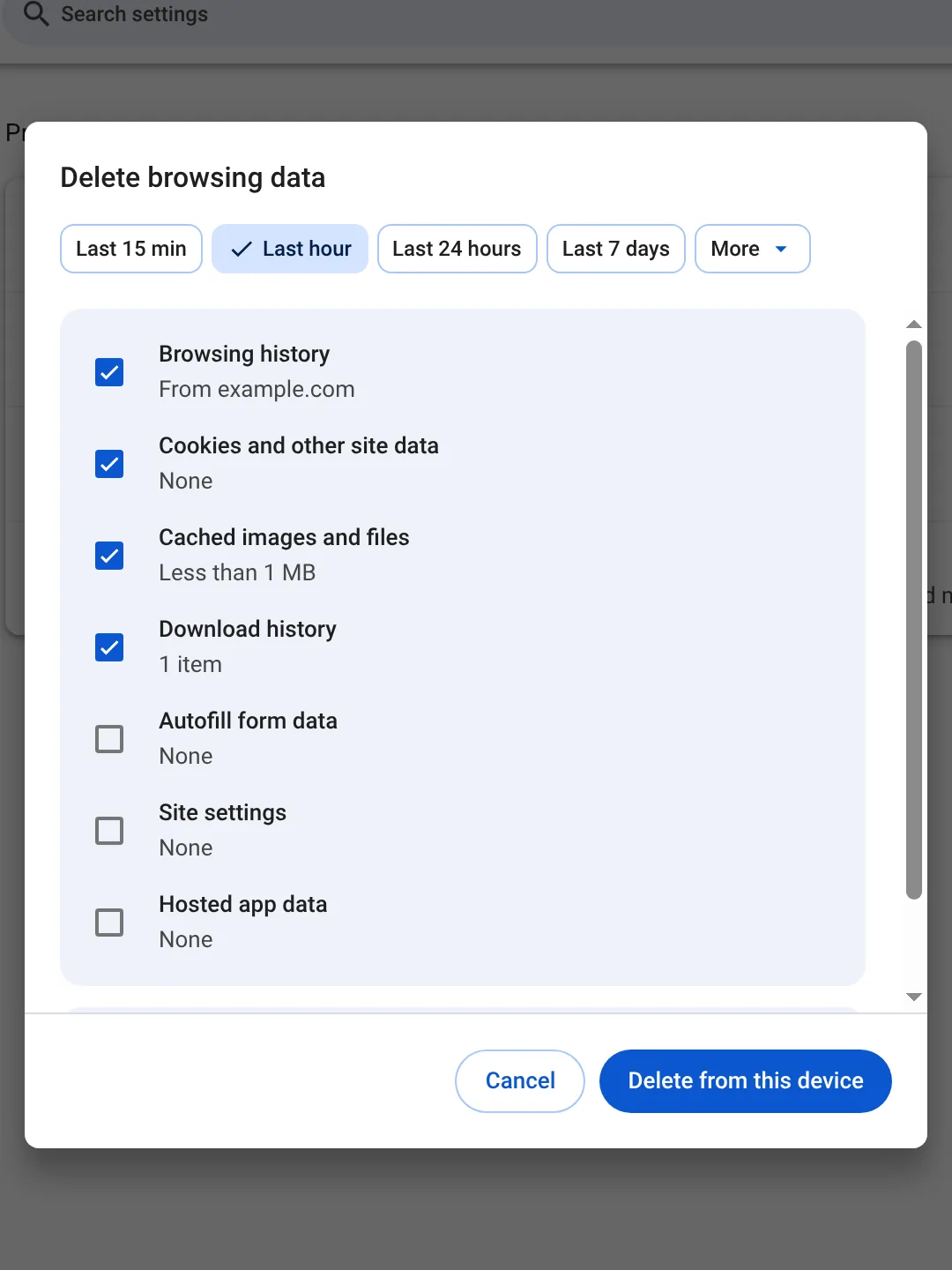
| Form entries | Words you typed into search boxes and fields | Shift + Delete on a suggestion, or Autofill form data in Delete browsing data |
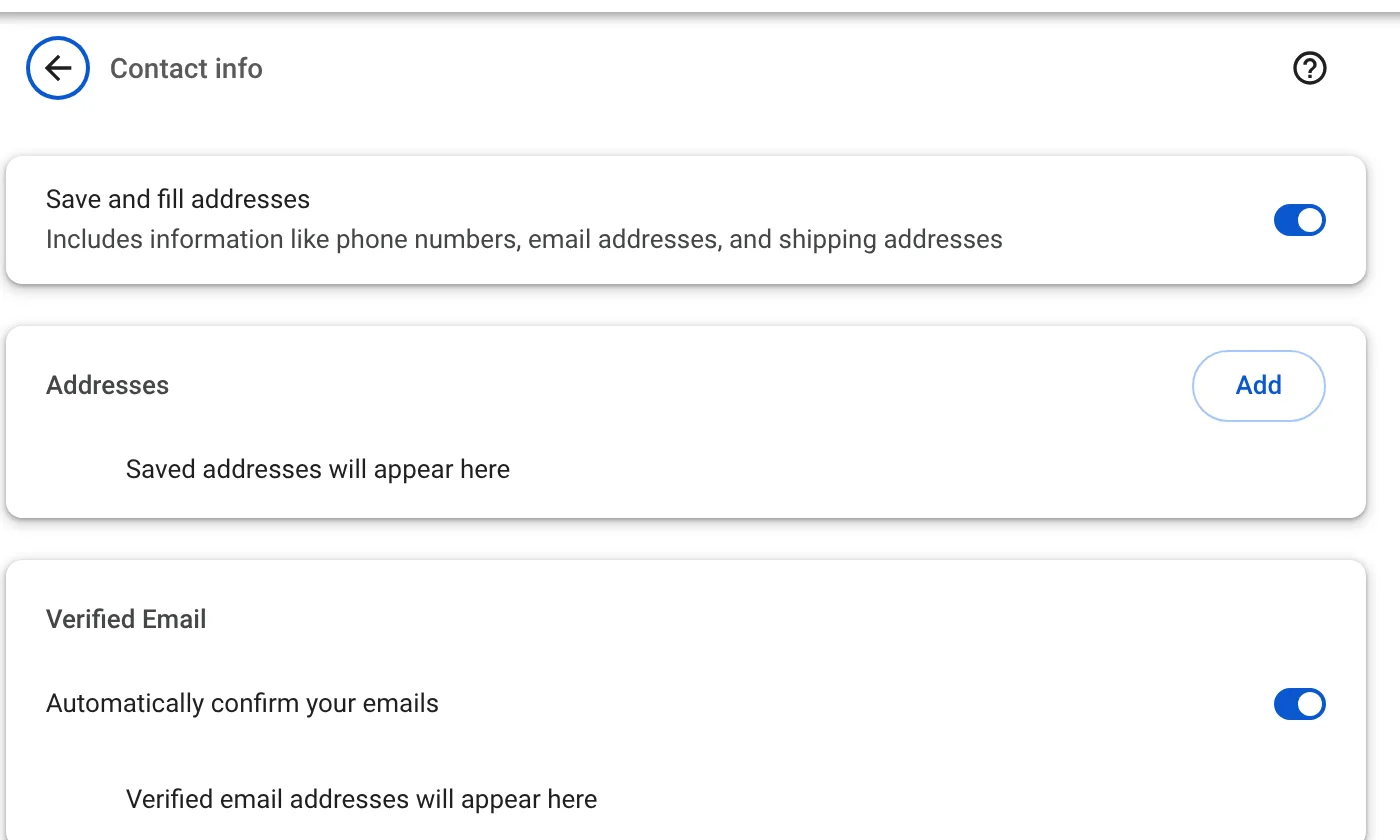
| Addresses and contact info | Name, street, phone, email | ⋮ → Passwords and autofill → Addresses |
| Payment methods | Saved cards | ⋮ → Passwords and autofill → Payment methods |
Remove a single suggestion
- Click into the field that shows the unwanted suggestion.
- Use the down arrow to highlight it. Do not click it.
- Press Shift + Delete on Windows or Linux, Shift + Fn + Delete on a Mac.
The same shortcut works for address-bar suggestions too, which we cover in deleting one site from your history.
Delete all form entries
Open Delete browsing data with Ctrl + Shift + Delete, click Show more, tick Autofill form data and choose All time.
Edit saved addresses and cards
Open the ⋮ menu and select Passwords and autofill. Under Addresses and more you can edit or remove each entry, or switch off saving altogether. Cards are under Payment methods.
Should you switch autofill off?
On your own computer, autofill saves real time and is reasonably safe. On a shared computer, it is the opposite: anyone who clicks into the email field sees your address. There, either switch it off or clear form data automatically. Auto History Wipe includes form data in its Standard and Deep profiles.
Autofill on Android and iPhone
On Android, Google's path is ⋮ → Settings → Passwords and autofill; on iPhone and iPad it is … → Settings → Autofill and passwords. Each type of information has its own page, with a Save and fill switch at the top. On iPhone you can swipe left on a saved address to delete it.
To delete everything typed into forms on Android, go to Settings → Privacy and security → Delete browsing data, choose the time range, and tick Autofill form data under Advanced.
Single suggestions on a Mac
Highlighting a suggestion with the arrow keys and pressing Shift + Delete works on Windows. On a Mac keyboard without a forward Delete key, the combination people use is Shift + Fn + Delete. This removes the remembered form entry only; it does not touch passwords saved in Google Password Manager.
Passwords are separate
Saved passwords are not part of autofill form data, even though the menu groups them together. They are managed in Google Password Manager, and deleting form entries leaves them alone. If you are cleaning a computer you are about to give away, sign out of Chrome and remove the profile instead of ticking boxes one by one.
The bottom line
One wrong suggestion can be removed in a second with the arrow keys and Shift + Delete; a full clean is the Autofill form data box in Delete browsing data. Saved addresses, cards and passwords each have their own page under Passwords and autofill.
Questions and answers
Does deleting autofill data delete my passwords?
No. Passwords are stored in Chrome's password manager and are deleted separately.
Why does the suggestion come back after I deleted it?
If you type the same thing into a form again, Chrome saves it again. Switch off saving in the autofill settings to stop that.
Is autofill data synced to my other devices?
Addresses and cards can be, if sync is on for them. Form entries typed into fields are kept on the device.
Sources
The official help pages behind this guide. Chrome moves menus around between versions; if yours looks different, these pages show the current steps.