
In short: For one stubborn page, press Ctrl + Shift + R to reload it without the cache. To empty the whole cache, press Ctrl + Shift + Delete, tick only Cached images and files and confirm. You stay signed in, because the cache is not where your sign-ins live.
What the cache is for
The cache is Chrome's storage room for things it has already downloaded: images, scripts, fonts, style sheets. When you go back to a site, Chrome takes those files from your disk instead of downloading them again, which is why a site you visit every day opens faster than a new one.
Most of the time the cache just works and you never think about it. It becomes a problem in two situations: a site has changed but Chrome keeps showing the old version, or the cache has grown to several gigabytes on a small drive.
Reload one page without the cache
If a single page looks broken or out of date, you rarely need to empty everything. A hard reload asks the site for fresh copies of that page's files:
| System | Hard reload | Normal reload |
|---|---|---|
| Windows / Linux | Ctrl + Shift + R or Ctrl + F5 | F5 |
| Mac | Cmd + Shift + R | Cmd + R |
| ChromeOS | Ctrl + Shift + R | Ctrl + R |
Web developers know one more trick: open the developer tools with F12, then right-click the reload button next to the address bar and choose Empty cache and hard reload.
Clear the whole cache
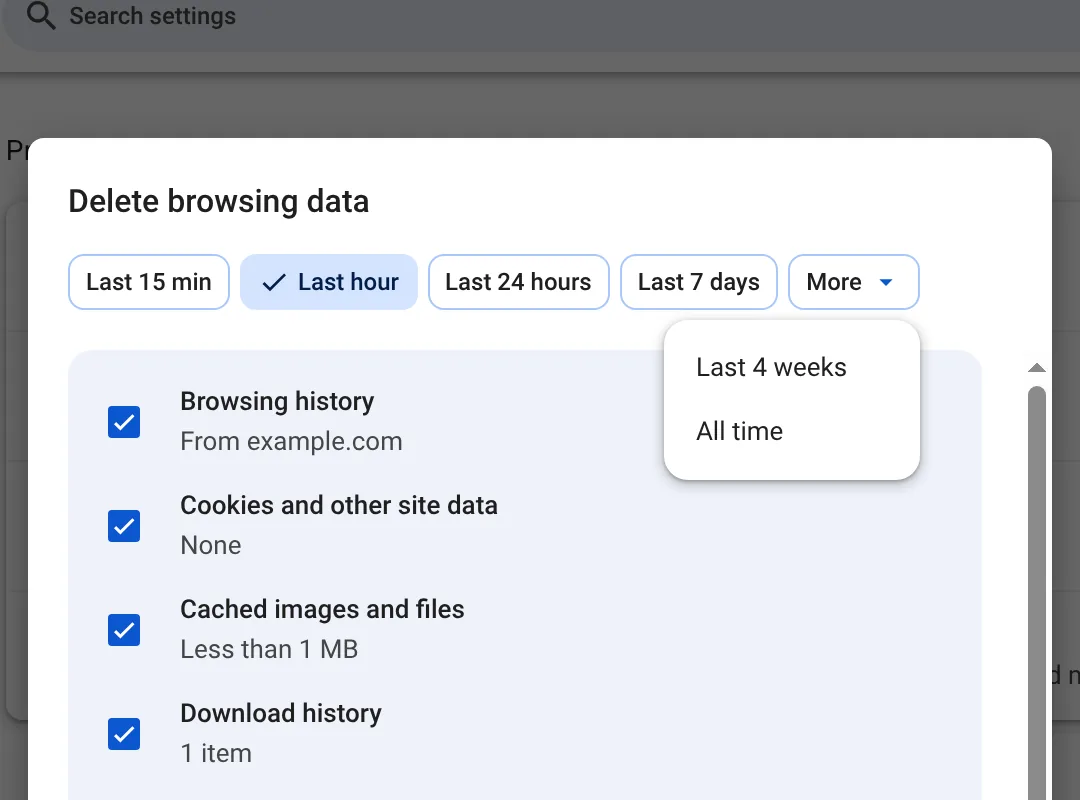
- Press Ctrl + Shift + Delete (Cmd + Shift + Delete on a Mac). The Delete browsing data window opens. Older versions call it Clear browsing data.
- Pick a time range. If you are fixing a problem, choose All time; recent ranges leave older files behind.
- Untick everything except Cached images and files, so you keep your history and stay signed in.
- Click Delete from this device.
Clear the cache for one site only
Chrome hides this one a little. Click the icon to the left of the address, open Site settings and choose Delete data. That removes the site's stored data and cookies, so you will be signed out of that one site. With Auto History Wipe it is one click in the popup: Clean only this site.
When clearing the cache helps, and when it doesn't
| Situation | Will it help? |
|---|---|
| A site shows an old version after an update | Yes, usually. Try a hard reload first. |
| A page loads with missing images or broken layout | Often. Clear that site, or the whole cache. |
| Your disk is almost full | Yes. The cache can take several gigabytes. |
| Chrome feels slow in general | Rarely. Too many tabs and extensions are more likely causes. |
| You want to hide where you have been | Only partly. History and cookies say far more than the cache. |
Clearing the cache too often has a small cost: the next visit to every site is slower while Chrome downloads everything again. Once a week, or whenever something looks wrong, is plenty for most people. We go into this in how often you should clear cookies and cache.
Clear the cache automatically
If you share a computer or just like a clean slate, let it happen on its own. In Auto History Wipe, the Light profile cleans history and cache only, so you are never signed out. Set it to run when Chrome closes or on a timer and forget about it. Cleaning when Chrome closes explains the details.
Clear the cache on Android and iPhone
On Android, open ⋮ → Delete browsing data. Google notes that the quick view deletes history for the last 15 minutes by default; tap More options to choose Cached images and files on its own and pick a longer range. On iPhone, go to … → Settings → Privacy and Security → Delete Browsing Data and tick only the cache.
The bottom line
Clearing the cache fixes pages that look broken or out of date, and it does not sign you out. Try a hard reload for one page first, clear only Cached images and files if that fails, and leave cookies alone unless signing out is the point.
Questions and answers
Will clearing the cache sign me out?
No. Sign-ins are stored in cookies, not in the cache. Untick cookies and you stay signed in everywhere.
Does clearing the cache delete my passwords?
No. Saved passwords are separate and are not touched unless you choose them explicitly.
How big is Chrome's cache?
It depends on your disk and how much you browse. The Delete browsing data window shows an estimate next to Cached images and files.
Why is the cache back after I cleared it?
Chrome refills it as soon as you browse. That is normal and what makes sites load quickly.
Sources
The official help pages behind this guide. Chrome moves menus around between versions; if yours looks different, these pages show the current steps.