
In short: There is no single right number. On your own computer, clear history daily or when Chrome closes, cookies weekly or on close with your everyday sites kept, and the cache only when something looks wrong or your disk fills up. On a shared computer, clean everything every time you leave it.
Why there is no single answer
Each data type has a cost and a benefit. History costs nothing to clear but reveals the most to someone at your keyboard. Cookies keep you signed in but also carry tracking IDs. The cache makes sites faster and says little about you. So each one deserves its own rhythm.
A schedule that works
| Data | Your own computer | Shared computer | Why |
|---|---|---|---|
| Browsing history | Daily or when Chrome closes | Every time you leave | Shows exactly where you have been |
| Cookies | Weekly or on close, keep your everyday sites | Every time you leave | Sign-ins and tracking IDs |
| Cache | When something breaks or space runs low | On close | Mostly speed, little privacy value |
| Download history | With history | Every time you leave | Shows file names and sources |
| Form data | Monthly, or never if you like autofill | On close | Your email and address pop up for others |
Signs it is time to clear
- A site shows an old version or a broken layout: clear its cache. How to clear the cache.
- Ads follow you around from one shop to every site: clear cookies and block third-party cookies.
- Someone else is about to use your computer: clear history, or use Guest mode for them.
- The address bar suggests things you would rather it didn't: clear history, or just that site.
Too often has a cost too
Clearing cookies every hour means signing in all day. Clearing the cache every hour makes every site slower. If you notice you are spending more time typing passwords than browsing, keep your everyday sites with protected sites and leave the cache alone.
Set it once
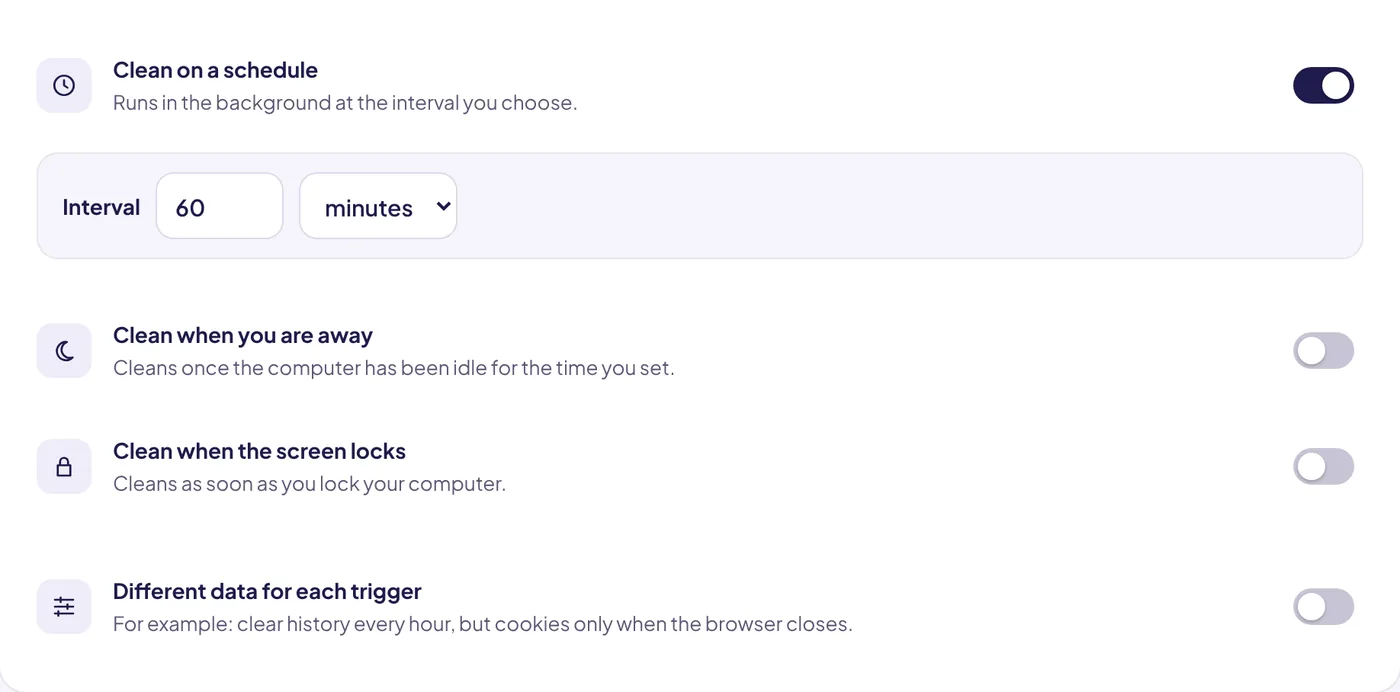
The easiest schedule is one you never have to remember. In Auto History Wipe you can clean different data at different moments, for example history every hour and cookies only when Chrome closes:
What Google says happens when you clear
Google's account help sums up the cost in two lines: after clearing cache and cookies, some site settings are deleted, and if you were signed in you will need to sign in again. It also notes that if you are signed in to Chrome, Chrome refreshes the Google cookies that keep you signed in, so your Google Account does not drop out. Plan your schedule around those effects rather than around a fixed number of days.
Example routines
- Personal laptop, one user: history and cache weekly, cookies monthly, with your daily sites protected.
- Family computer: history every time Chrome closes, cookies weekly, separate Chrome profiles for each person.
- Work laptop: follow your company's policy first; clearing cookies on a schedule can sign you out of work tools that are hard to get back into.
- Public or borrowed computer: use Guest mode or incognito and close every window when you leave. Nothing to schedule.
If you notice you are signing in to the same site every morning, that is a sign to protect it, not to clear less often. Why websites keep logging you out covers the usual causes.
The bottom line
There is no magic number: clear history and cache as often as you like, and cookies as often as you can live with signing in again. Protect the sites you use daily and let a schedule do the rest.
Questions and answers
Is it bad to never clear your cache?
Not really. Chrome manages its size. Clear it when a site misbehaves or you need disk space.
Does clearing cookies make my computer faster?
No. Cookies are tiny. Clearing them is about privacy, not speed.
Should I clear cookies every day?
You can, if you keep the sites you use every day signed in. Otherwise weekly is a good balance.
Sources
The official help pages behind this guide. Chrome moves menus around between versions; if yours looks different, these pages show the current steps.