
In short: History is the list of pages you visited. The cache stores copies of site files so pages load faster. Cookies are small notes sites leave in your browser to remember you, including that you are signed in. Clearing history or cache does not sign you out; clearing cookies does.
The short version
| History | Cache | Cookies | |
|---|---|---|---|
| What it is | A list of pages you opened | Copies of images, scripts and pages | Small notes a site stores in your browser |
| Who uses it | You and Chrome's suggestions | Chrome, to load pages faster | Websites, and advertisers on third-party cookies |
| What it reveals | Where you have been, and when | Some of the sites you visited | Your sign-ins, preferences and tracking IDs |
| Clearing it | Empties the list and suggestions | Next visits load a bit slower | Signs you out of most sites |
| Typical size | Small | Hundreds of MB to several GB | Small |
History: where you have been
Your history is simply a diary of pages, with titles and times. It is the first thing someone sees if they borrow your computer, and it powers the address-bar suggestions that pop up while you type. Clearing it is harmless: you lose the list, nothing else.
Cache: the speed-up
The cache keeps copies of things sites send you, like logos and scripts, so they do not have to be downloaded every time. It says a little about where you have been, but mostly it just takes up space. Clear it when a site looks broken or your disk is full; here is how.
Cookies: the memory
Cookies are how a site remembers that you are signed in, what is in your basket or which language you chose. Third-party cookies, set by companies embedded on many sites, are also how advertisers recognise you across the web. What cookies are explains the difference between the two.
Because cookies hold your sign-ins, clearing them is the one that hurts. The way around it is to clear cookies everywhere except a few sites you trust, which is what protected sites do.
Which should you clear, and when?
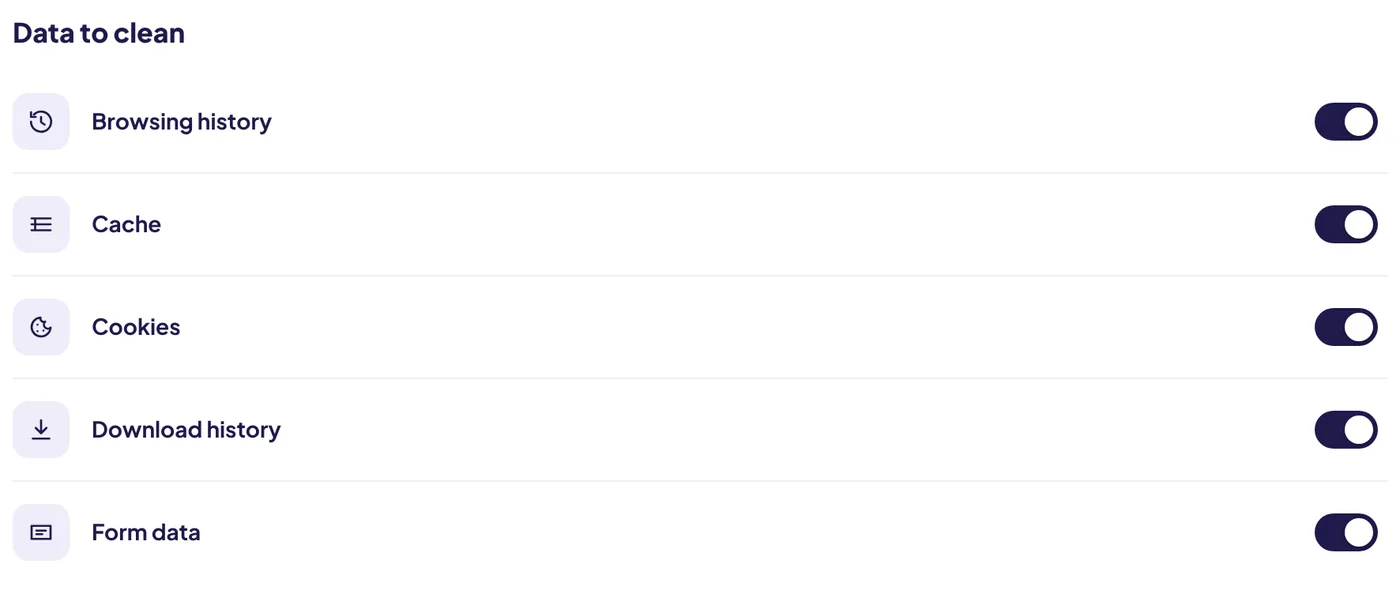
How often to clear cookies and cache goes into more detail, including shared computers. In Auto History Wipe the three profiles map to this: Light clears history and cache, Standard adds cookies, downloads and form data, Deep adds site storage.
Where each one lives
All three are stored in your Chrome profile on that device, but they behave differently once you look closer.
- History is kept for about 90 days in Chrome, and can also be copied to your Google Account if history sync is on. Deleting it on one synced device deletes it on the others.
- Cache stays on the device only. Google describes it as the parts of pages Chrome remembers so they open faster next time.
- Cookies are set by websites and sent back to them. Google's help page also groups other site storage with them, such as Web Storage and IndexedDB, which is why the box says "Cookies and other site data".
A quick way to decide
- If a page looks broken or out of date, clear the cache.
- If a site behaves as if it knows you too well, clear its cookies.
- If you do not want anyone to see where you have been, clear history.
- If you want all three, but to stay signed in to a few sites, use exceptions. Here is how.
Google's own help page lists more boxes than these three, including download history, autofill and passwords. What Delete browsing data removes explains every one.
The bottom line
History is a list of where you went, cache is a speed-up and cookies are how sites remember you. Clear the one that matches your problem, and keep cookies for the sites you sign in to every day.
Questions and answers
Is it bad to clear cookies?
No, but you will be signed out of sites. Keep the ones you use every day and clear the rest.
Does clearing the cache delete cookies?
No. They are separate options in Chrome. You can clear one and keep the other.
Do websites see my history?
No. Your history stays in your browser. Websites see your cookies, which is why tracking cookies matter more for privacy.
Sources
The official help pages behind this guide. Chrome moves menus around between versions; if yours looks different, these pages show the current steps.